
216.73.216.52 - United States, La Habra
iMac

How to setup OpenVPN on macOS

In order to setup VPN-connection via OpenVPN protocol on your iMac or Macbook you will need to install additional software. Currently the most popular OpenVPN clients for Mac OS X are freeware Tunnelblick and paid Viscosity. For our guide we chose connection via Tunnelblick, as it is the most popular solution.
1
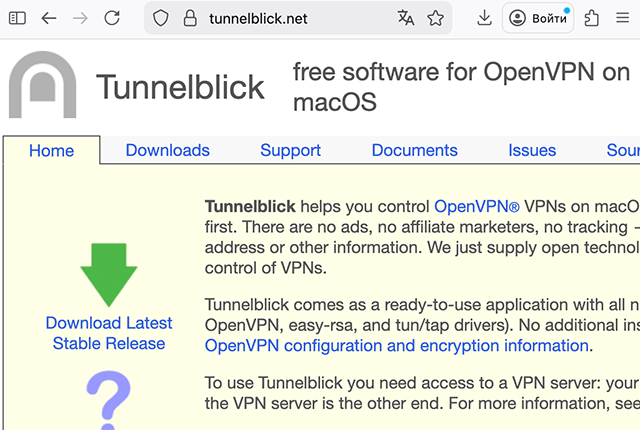
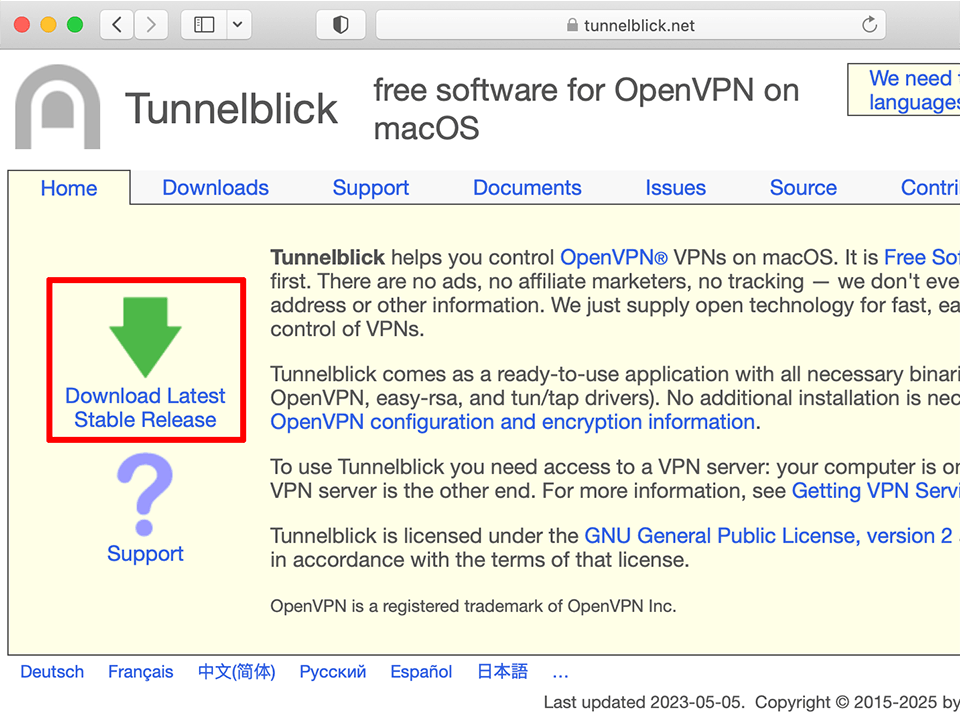
Download Tunnelblick from tunnelblick.net.
Next
Setting up OpenVPN on Mac OS X, step 1 Setting up OpenVPN on Mac OS X, step 1
2
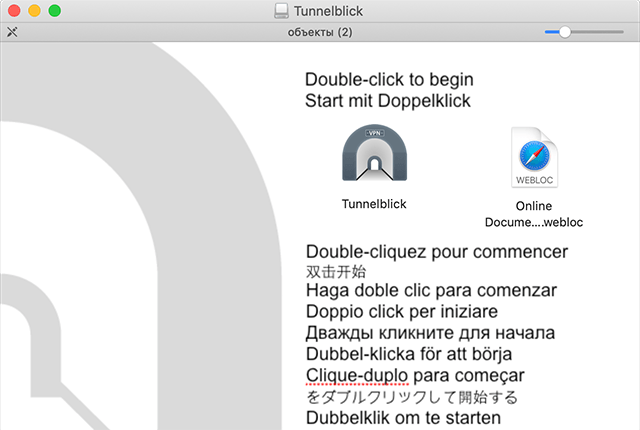
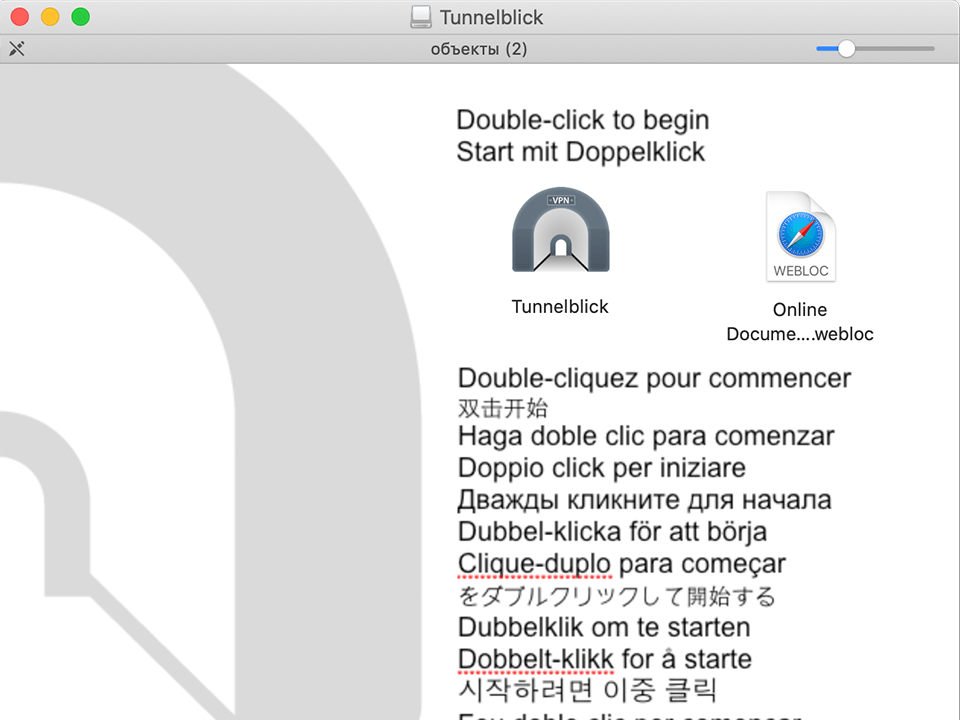
Launch the application, in appeared window double click on app icon to install.
Next
Setting up OpenVPN on Mac OS X, step 2 Setting up OpenVPN on Mac OS X, step 2
3
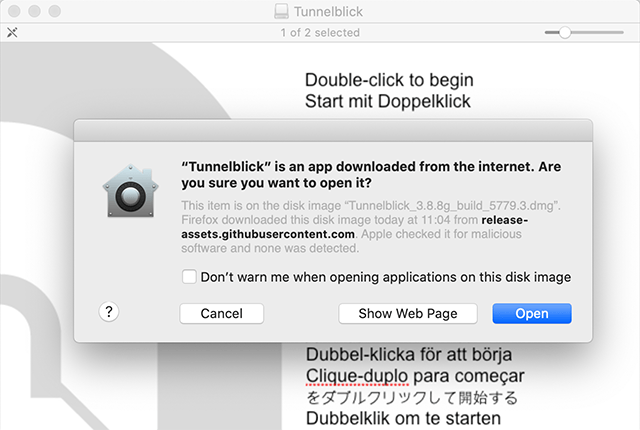
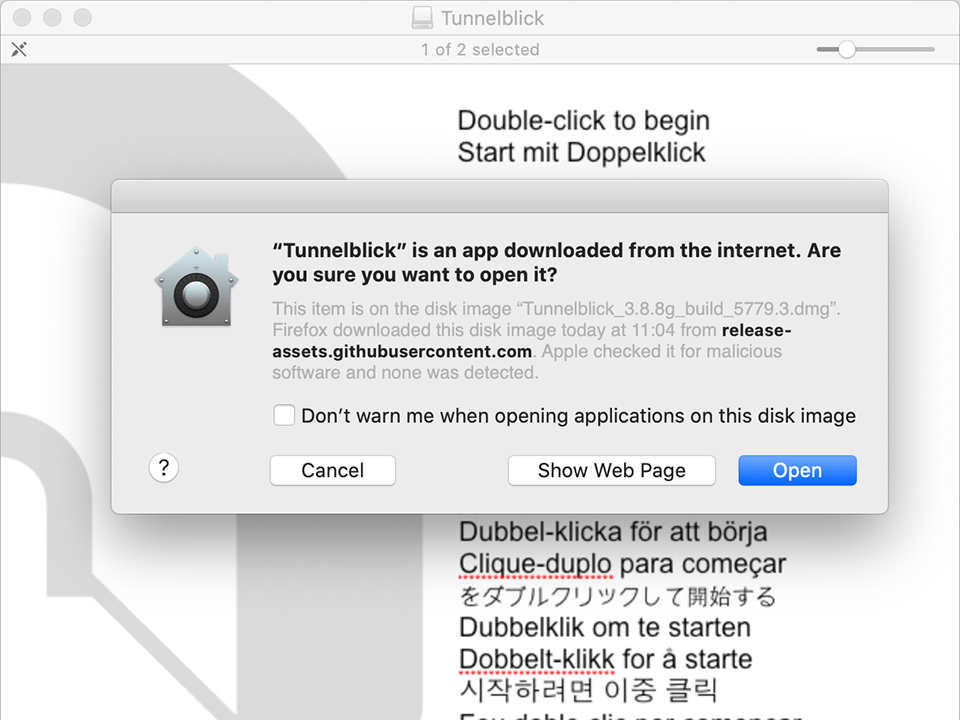
Click Open.
Next
Setting up OpenVPN on Mac OS X, step 3 Setting up OpenVPN on Mac OS X, step 3
4
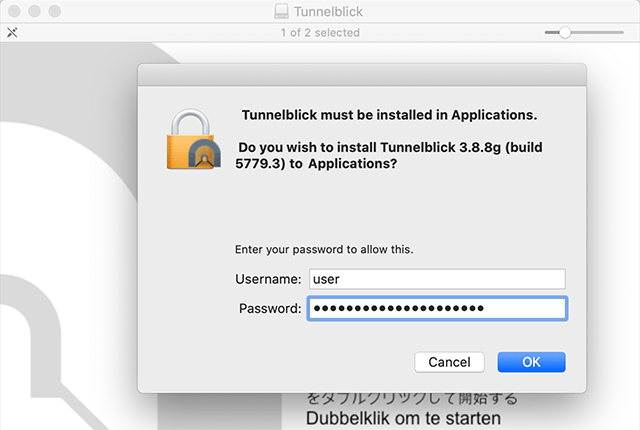
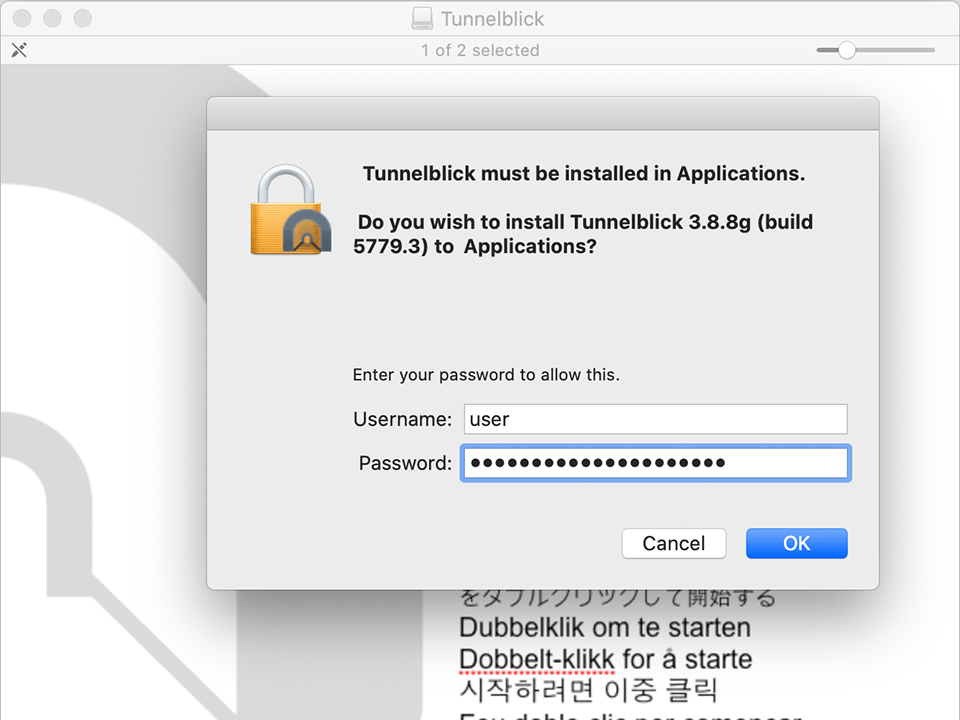
Input your Mac password and click OK.
Next
Setting up OpenVPN on Mac OS X, step 4 Setting up OpenVPN on Mac OS X, step 4
5
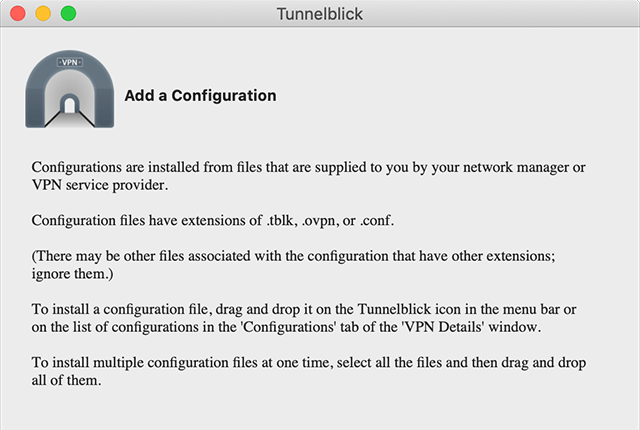
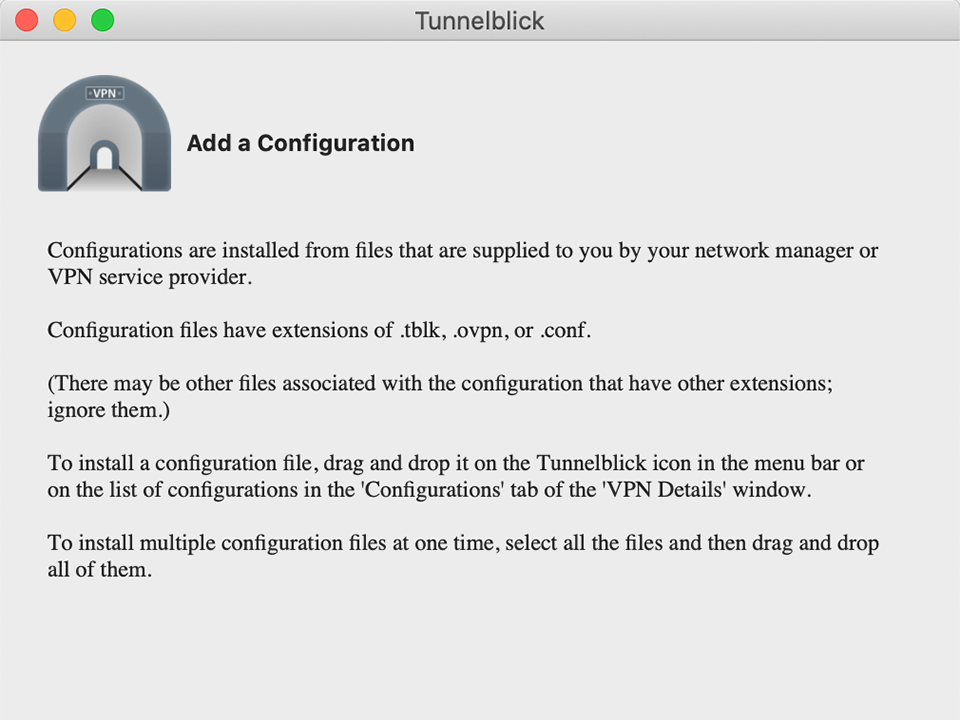
After paying the order you will receive by email an archive with configuration files. Extract the files with .ovpn extension from this archive and place it to Tunnelblick icon in status bar.
Next
Setting up OpenVPN on Mac OS X, step 5 Setting up OpenVPN on Mac OS X, step 5
6
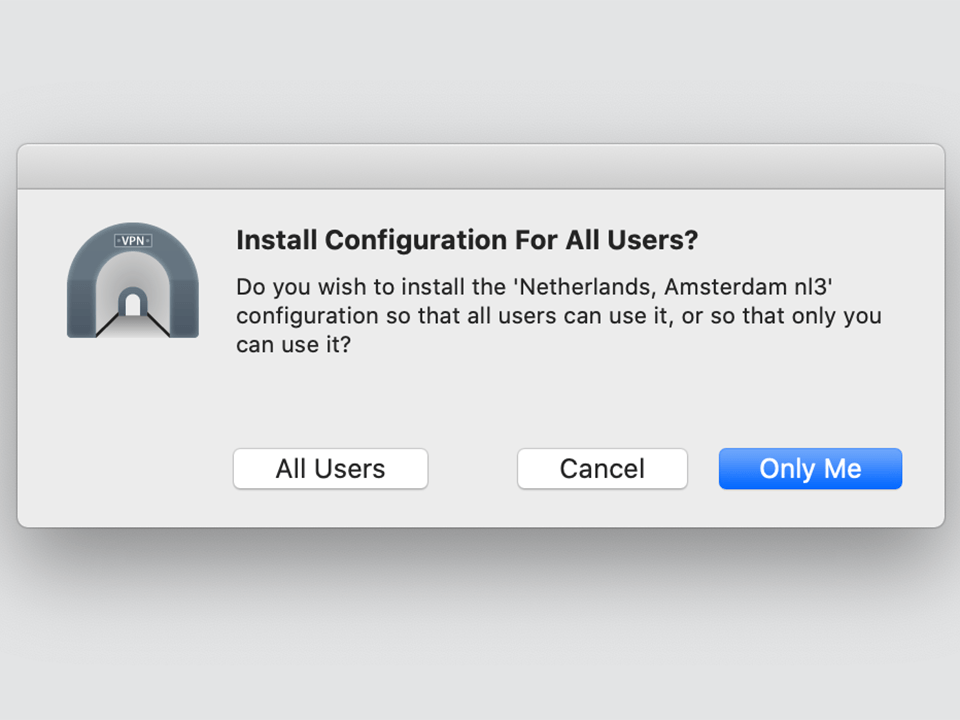
In appeared window click Only me and input your Mac password.
Next
Setting up OpenVPN on Mac OS X, step 6 Setting up OpenVPN on Mac OS X, step 6
7
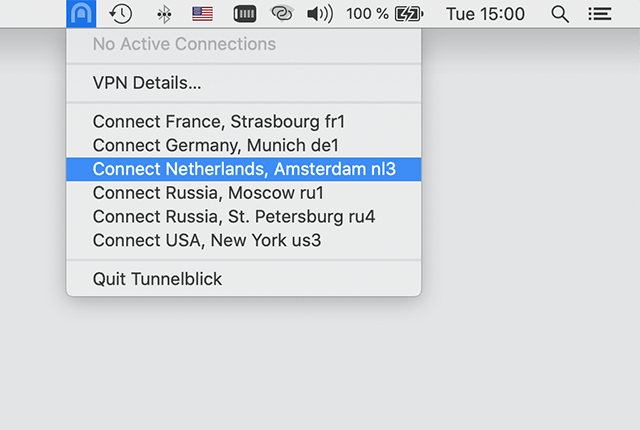
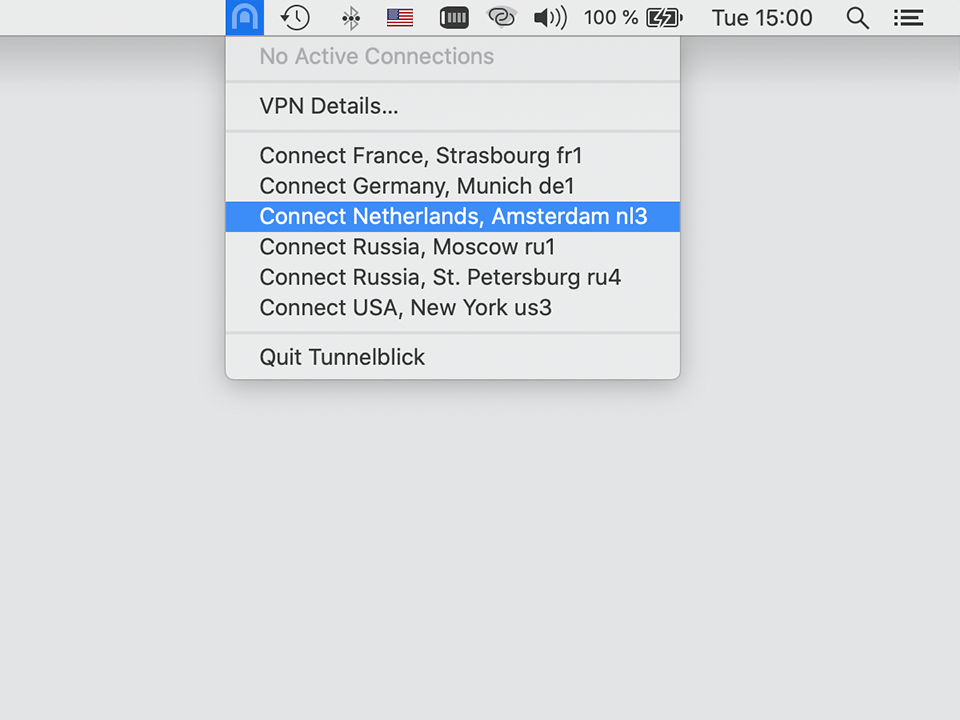
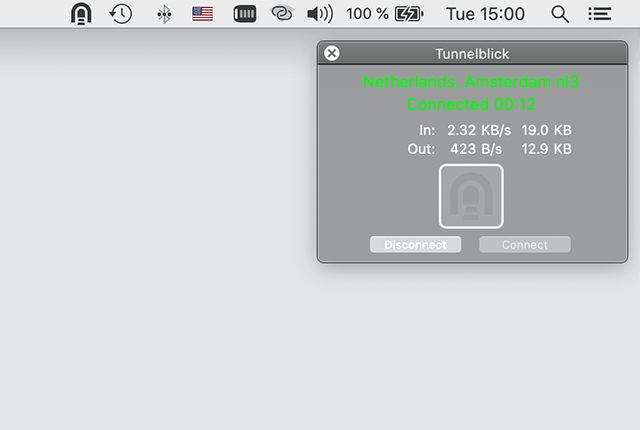
To establish VPN-connection click on Tunnelblick icon in system bar and select desired VPN-server. VPN-connection will be established in few seconds.
Next
Setting up OpenVPN on Mac OS X, step 7 Setting up OpenVPN on Mac OS X, step 7
8
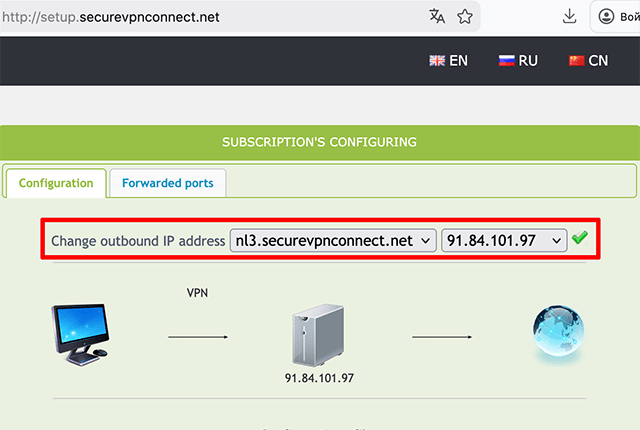
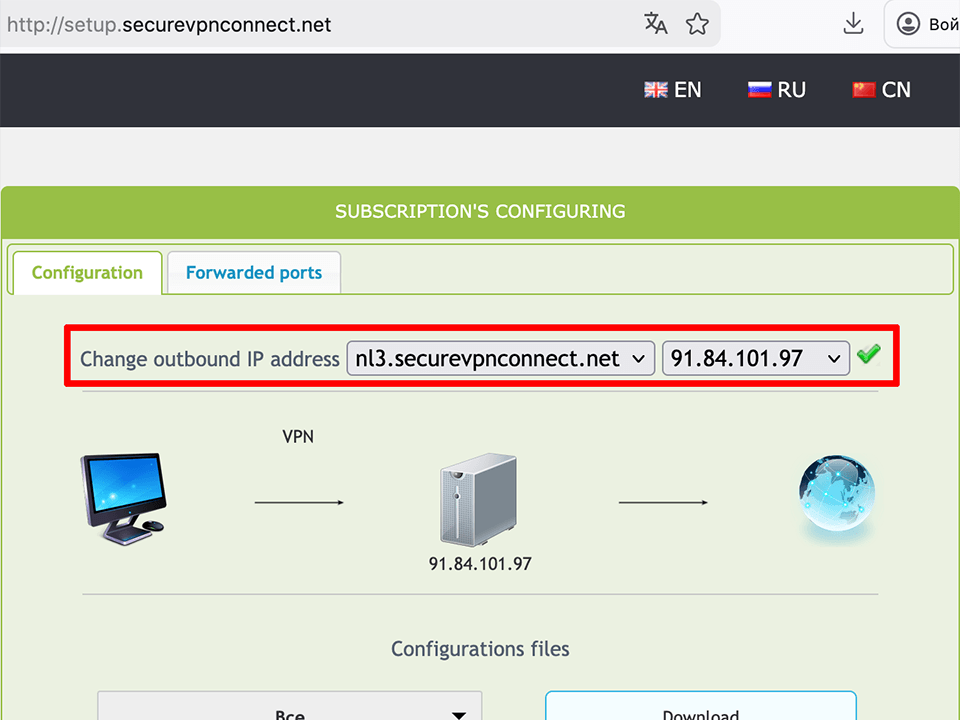
To setup the outgoing IP open the http://setup.securevpnconnect.net when VPN-connection is active. Select the IP address you need and click the green check mark. The address is changed instantly, and the next time you connect to the VPN, the previously set address will be used.
Next
Setting up OpenVPN on Mac OS X, step 8 Setting up OpenVPN on Mac OS X, step 8
9
To break VPN-connection click Disconnect.
To top
Setting up OpenVPN on Mac OS X, step 9 Setting up OpenVPN on Mac OS X, step 9

Registration


E-mail
Language
Password
Confirm Password

Support and Feedback