
216.73.216.52 - United States, La Habra
imac

How to setup L2TP VPN on macOS

It will be no trouble to setup a VPN-connection via L2TP protocol on macOS – the setup process is intuitively clear, and there is no need to install any additional software. After going through the steps described below VPN technology will protect data on your Macbook or iMac from malicious interceptions, will make it possible to use free Wi-Fi hotspots safely, visit online resources anonymously.
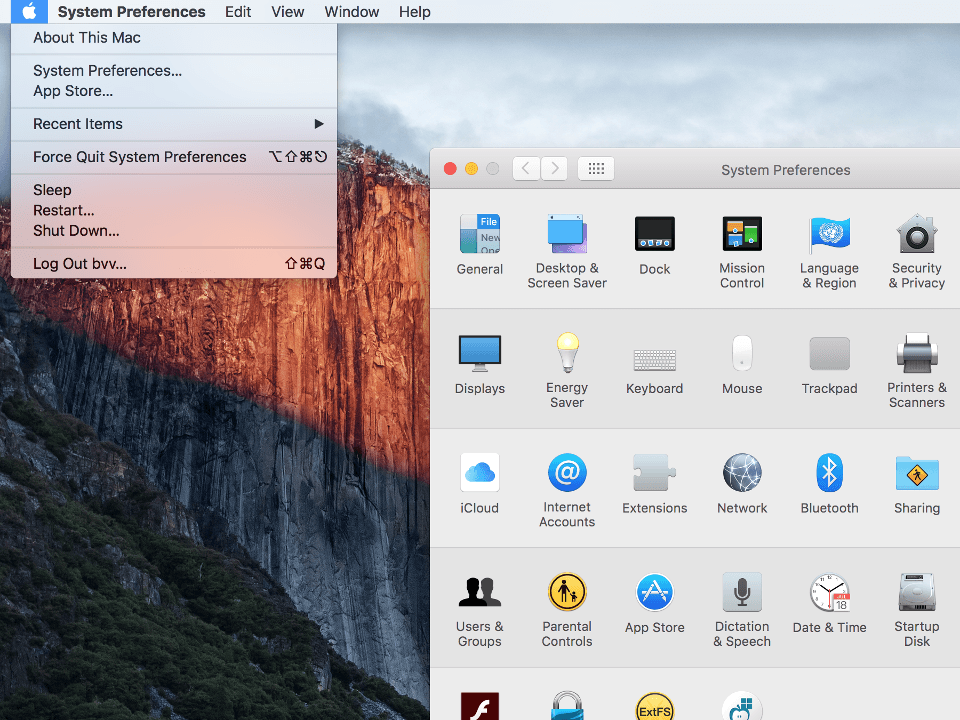
1
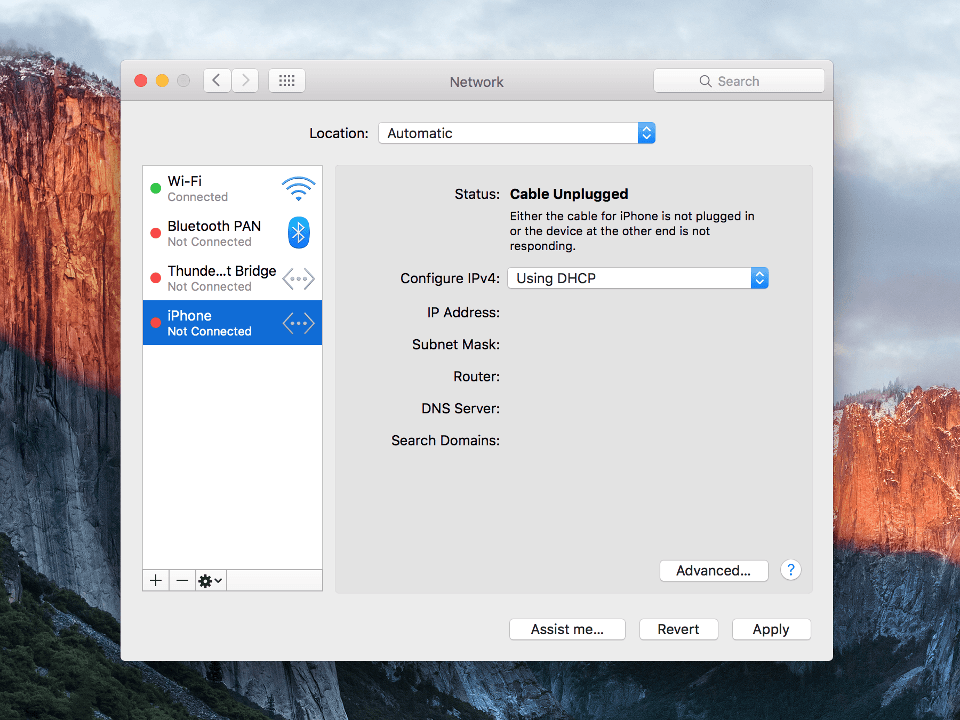
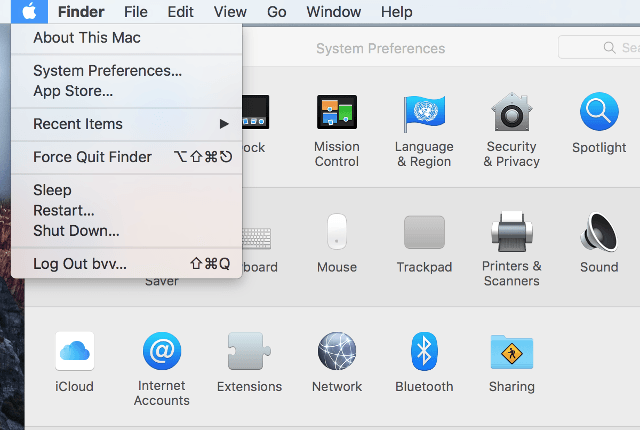
Click on Apple icon snd select System Preferences..., in appeared window click Network.
Next
Setting up L2TP VPN on Mac OS X, step 1 Setting up L2TP VPN on Mac OS X, step 1
2
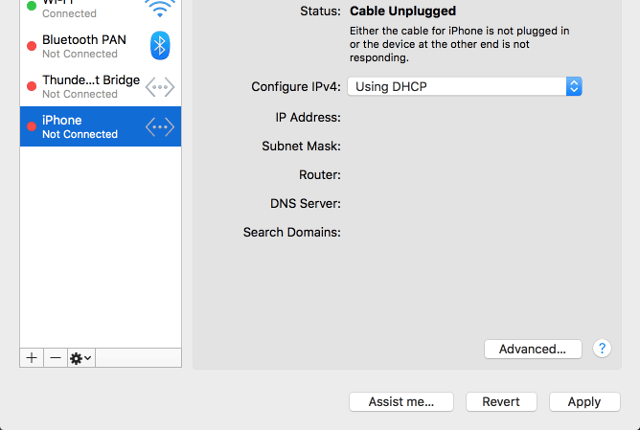
Click on "plus" icon from bottom left.
Next
Setting up L2TP VPN on Mac OS X, step 2 Setting up L2TP VPN on Mac OS X, step 2
3
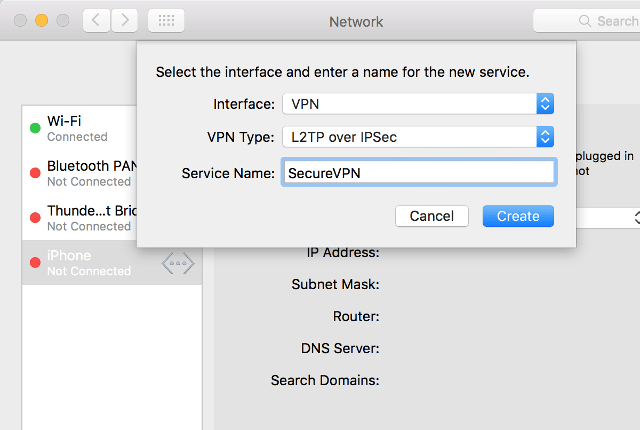
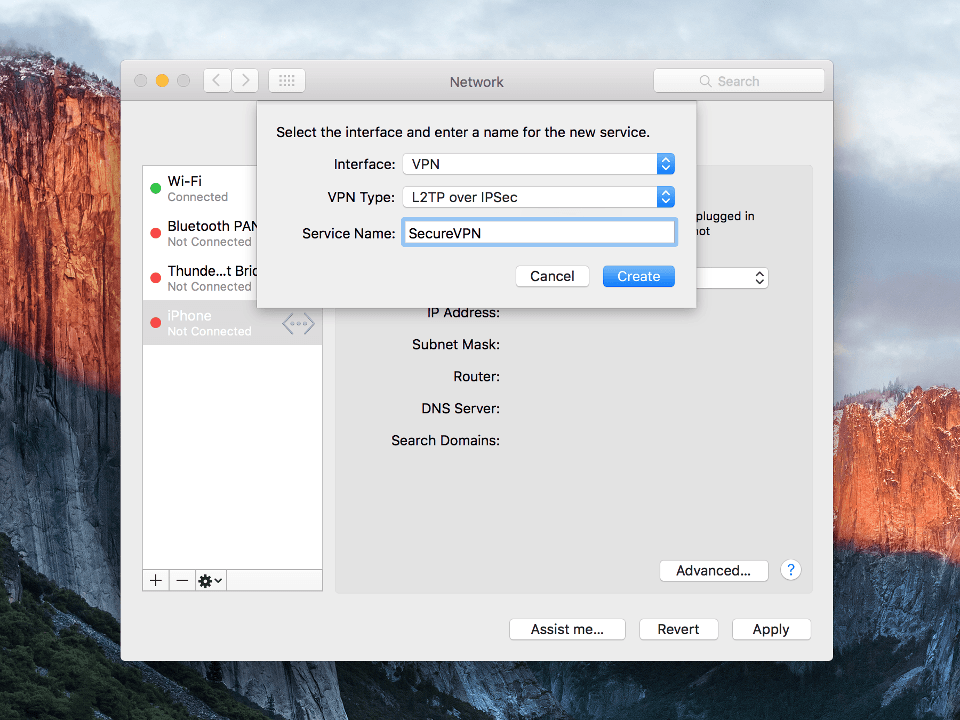
Set the following settings: To continue click Create.
Next
Setting up L2TP VPN on Mac OS X, step 3 Setting up L2TP VPN on Mac OS X, step 3
4
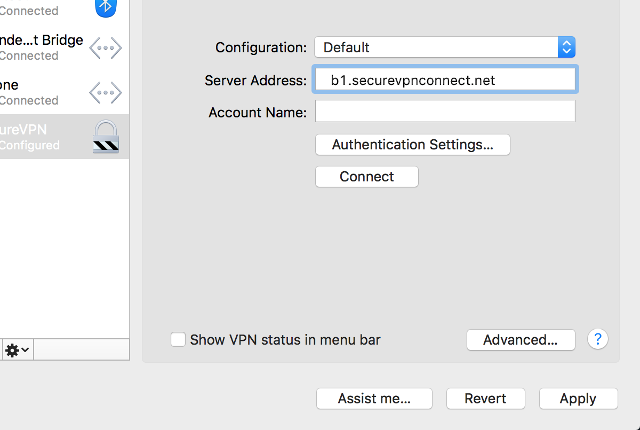
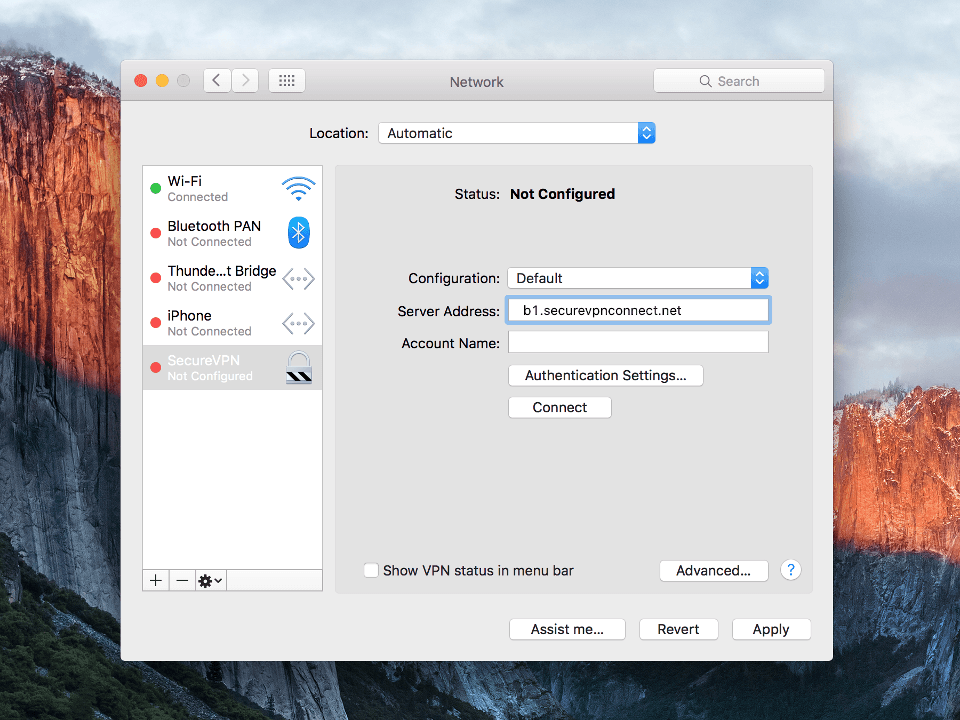
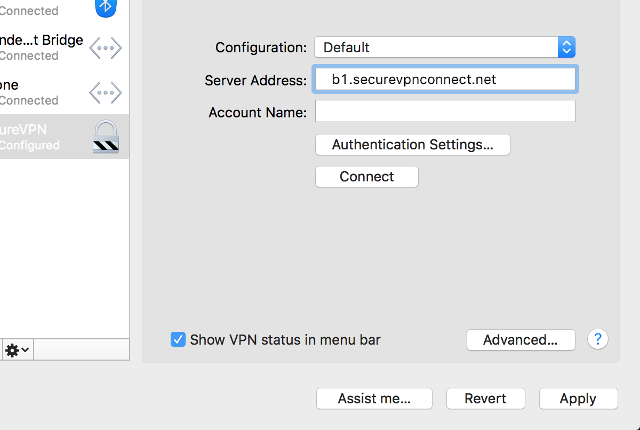
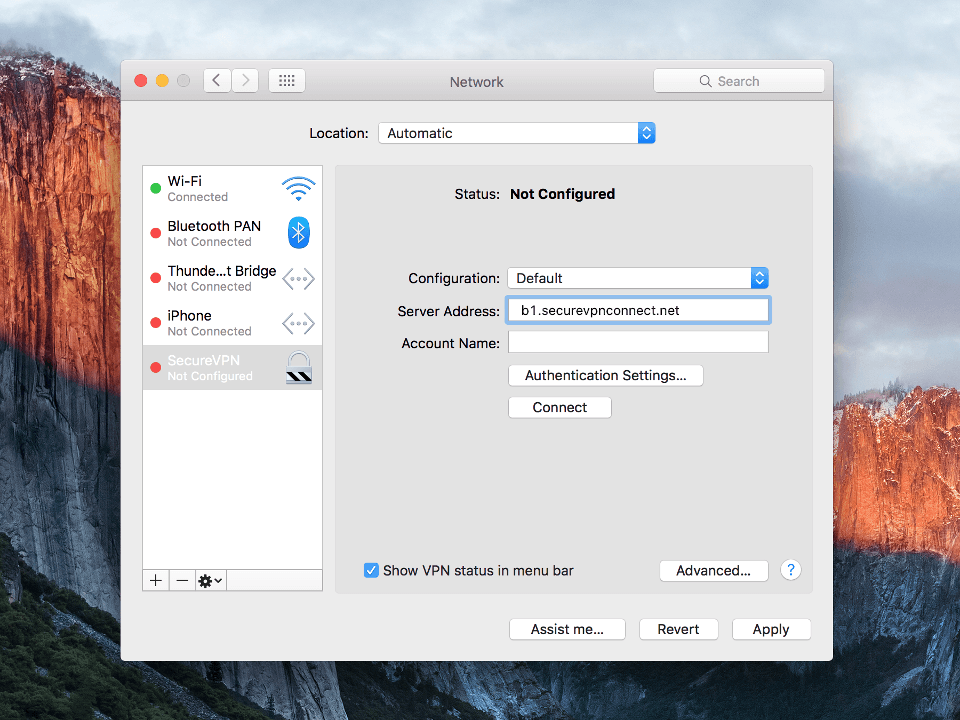
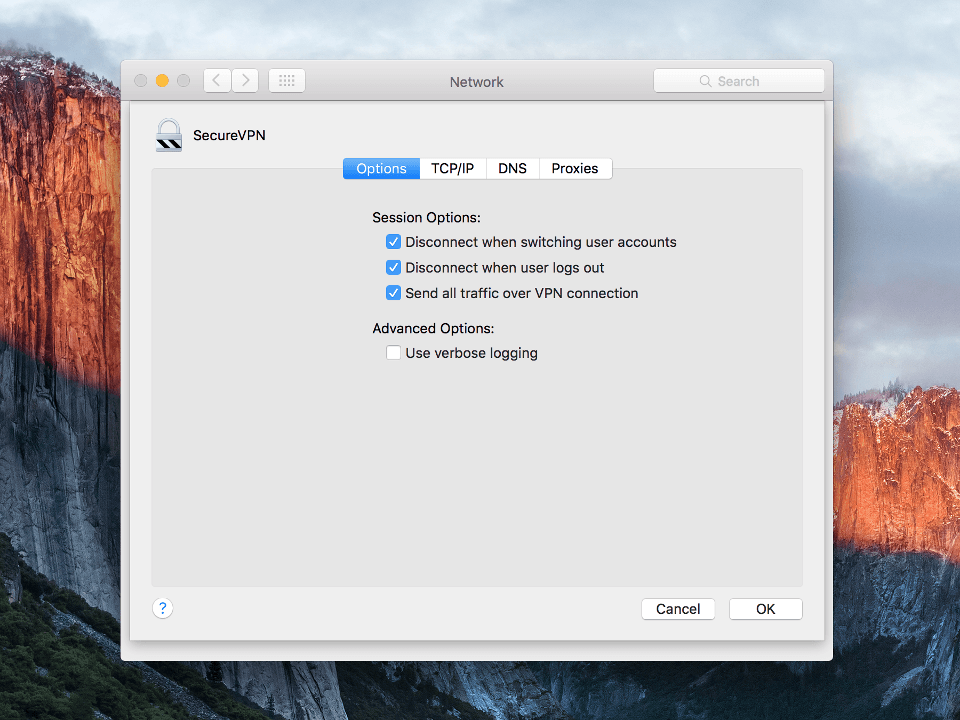
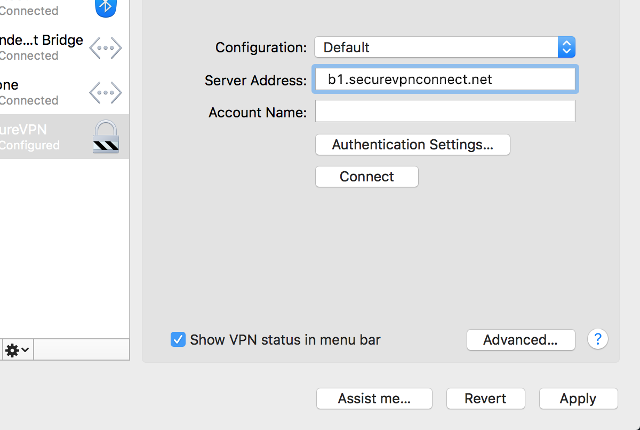
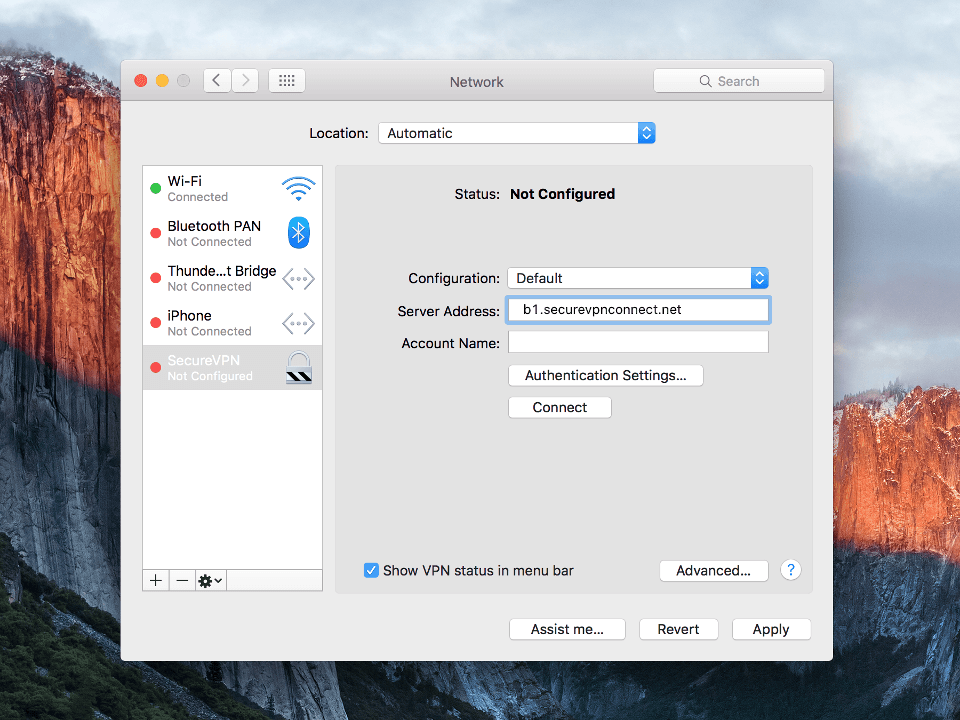
Set connection parameters: To proceed click Authentication Settings.

Important Note: VPN servers list and your VPN username are in the file readme.txt (was sent to your email after ordering the subscription).
Next
username Setting up L2TP VPN on Mac OS X, step 4 Setting up L2TP VPN on Mac OS X, step 4
5
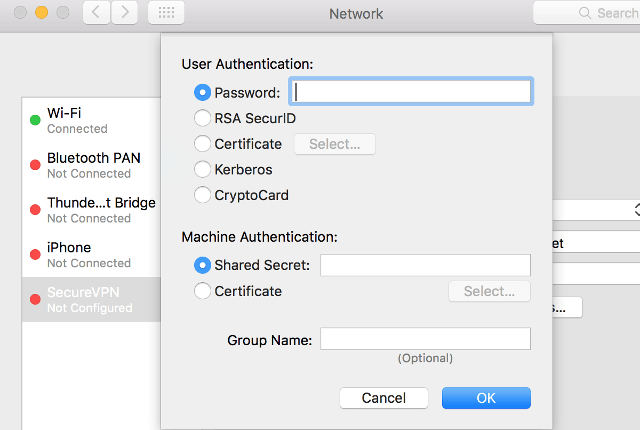
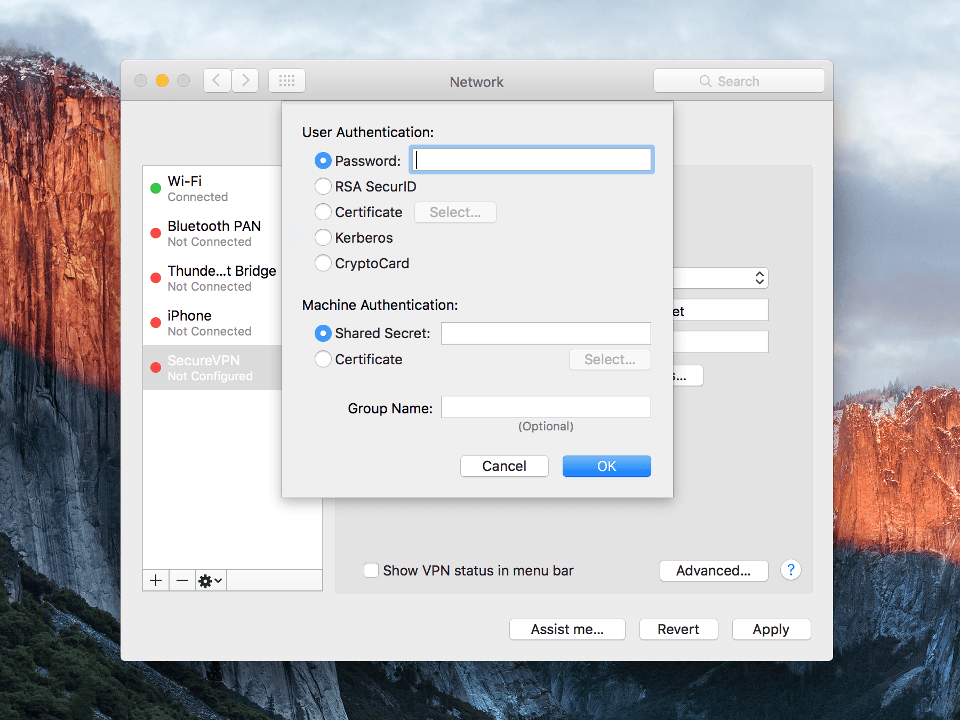
Set accounting data and click OK: Important Note: your VPN password are in the file readme.txt (was sent to your email after ordering the subscription).
Next
password a-secure-psk Setting up L2TP VPN on Mac OS X, step 5 Setting up L2TP VPN on Mac OS X, step 5
username Setting up L2TP VPN on Mac OS X, step 6 Setting up L2TP VPN on Mac OS X, step 6
Setting up L2TP VPN on Mac OS X, step 7 Setting up L2TP VPN on Mac OS X, step 7
8
To finish click on Apply.
Next
username Setting up L2TP VPN on Mac OS X, step 8 Setting up L2TP VPN on Mac OS X, step 8
9
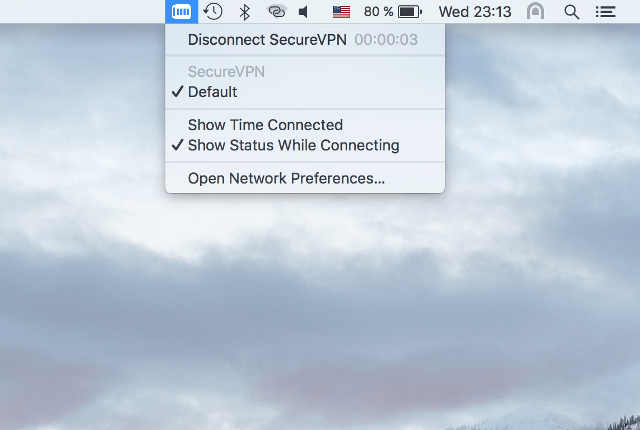
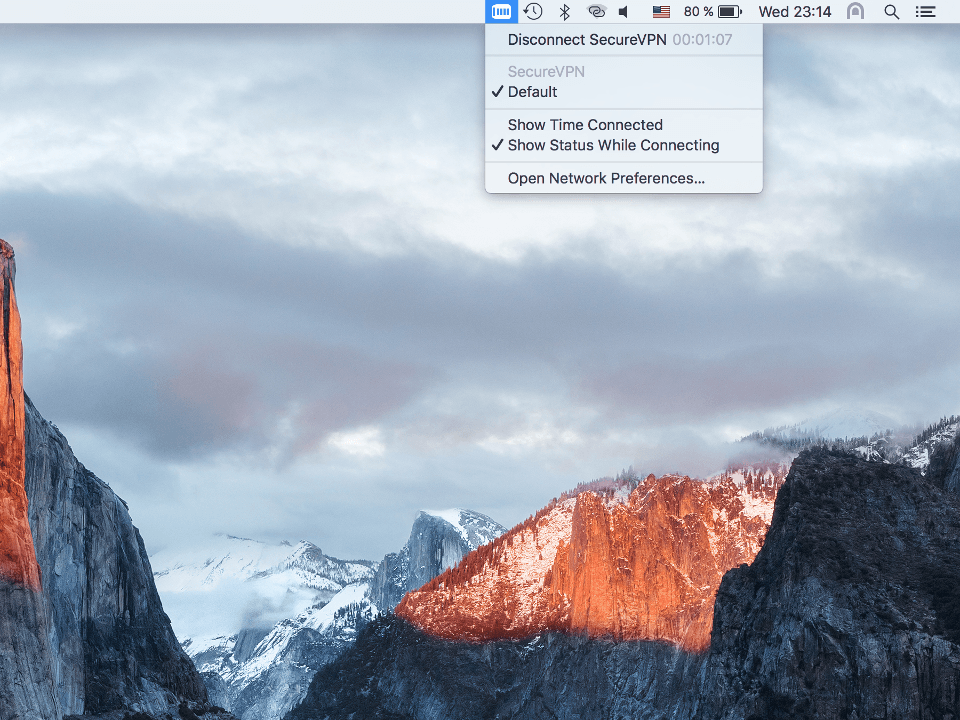
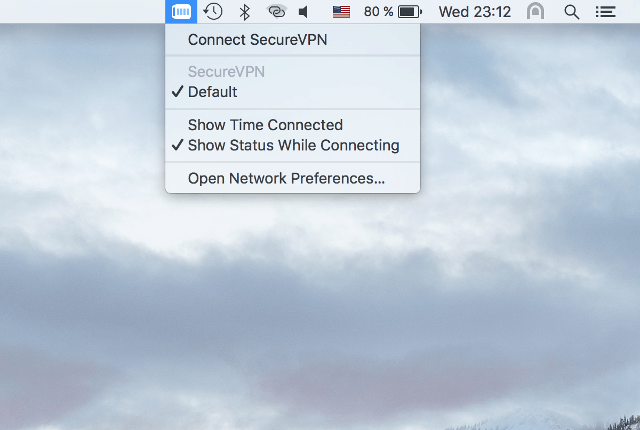
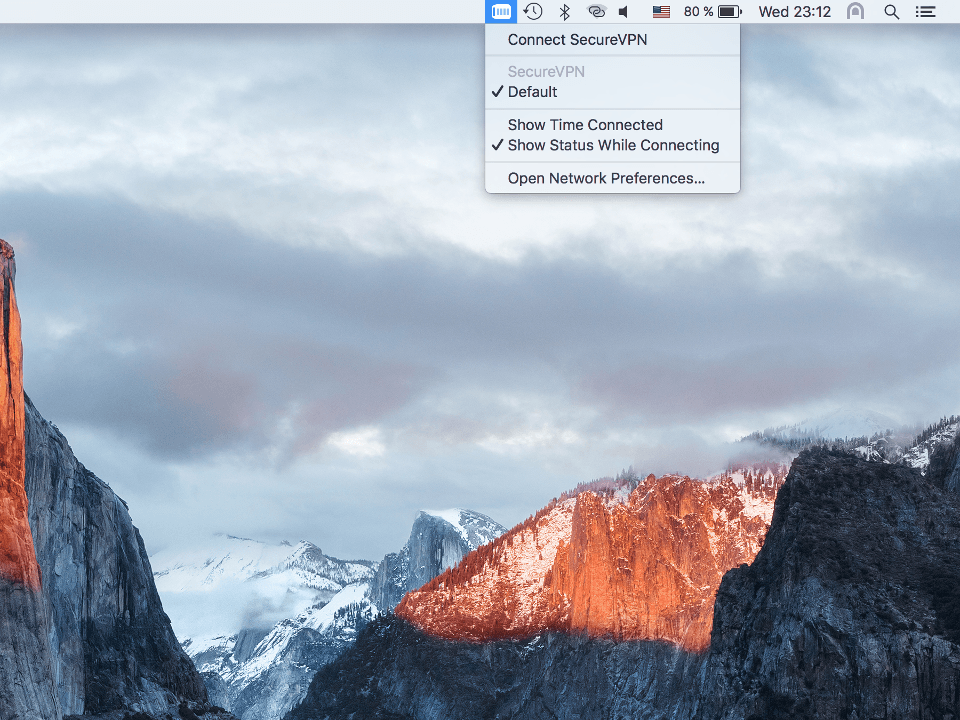
To establish VPN-connection click on VPN icon from status bar and hit Connect.
Next
Setting up L2TP VPN on Mac OS X, step 9 Setting up L2TP VPN on Mac OS X, step 9
10
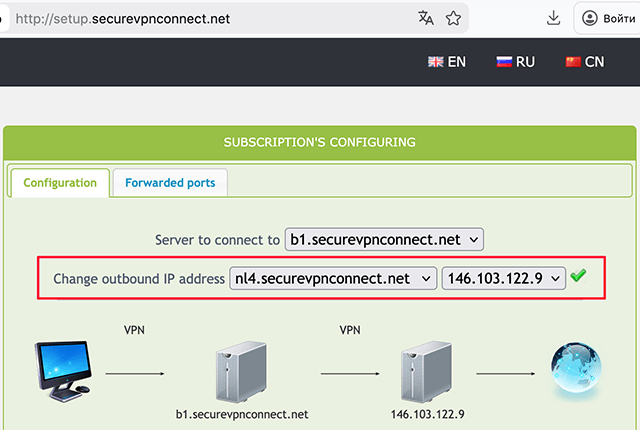
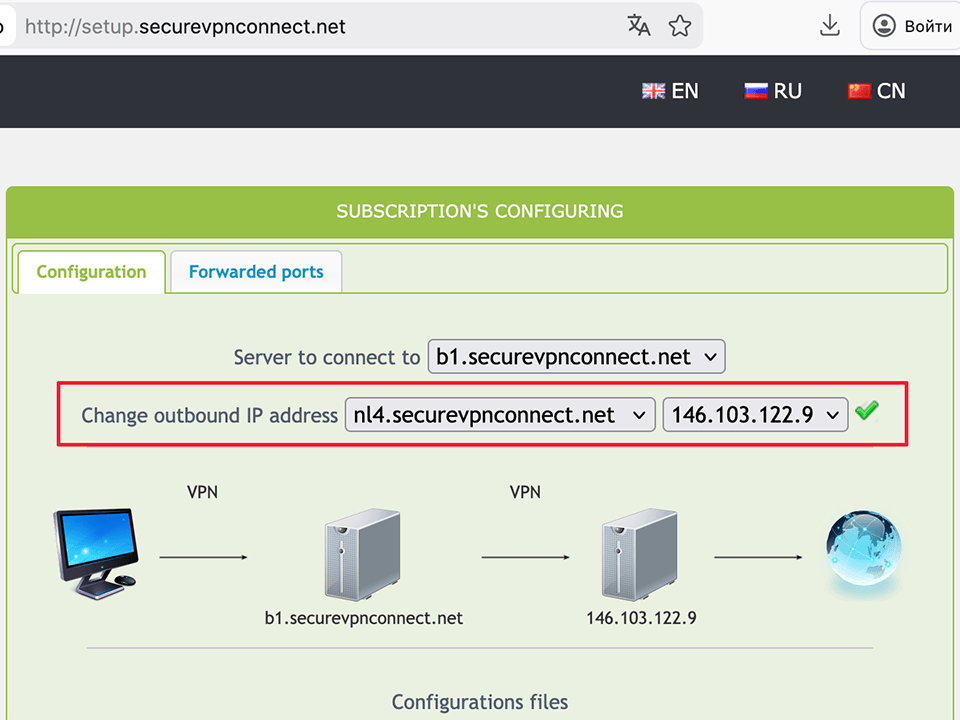
To setup the outgoing IP open the http://setup.securevpnconnect.net when VPN-connection is active. Select the IP address you need and click the green check mark. The address is changed instantly, and the next time you connect to the VPN, the previously set address will be used.
Next
Setting up L2TP VPN on Mac OS X, step 10 Setting up L2TP VPN on Mac OS X, step 10
11
To break VPN-connection click on VPN icon from status bar and select Disconnect.
To top
Setting up L2TP VPN on Mac OS X, step 11 Setting up L2TP VPN on Mac OS X, step 11

Registration


E-mail
Language
Password
Confirm Password

Support and Feedback