
216.73.216.52 - United States, La Habra
iPhone

How to setup IKEv2 VPN on iOS

With the help of a few features, VPN protocol IKEv2 is a suitable option for mobile users. IKEv2 allows automatic VPN tunnel reconnection in case of a temporary Internet disconnect, for example, while using a subway. IKEv2 can also withstand network switches, for example, switch between Wi-Fi hotspots or between Wi-Fi and mobile network. It is easy to setup IKEv2 VPN connection on Android smartphones, iPhones, and iPads — simply follow our step-by-step guide.
1
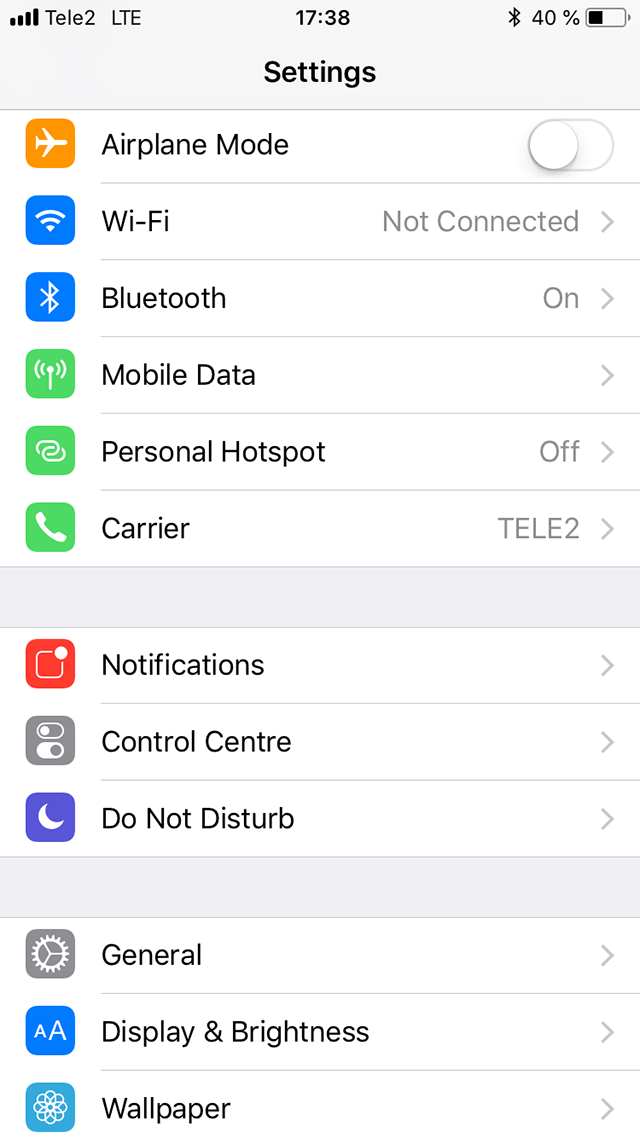
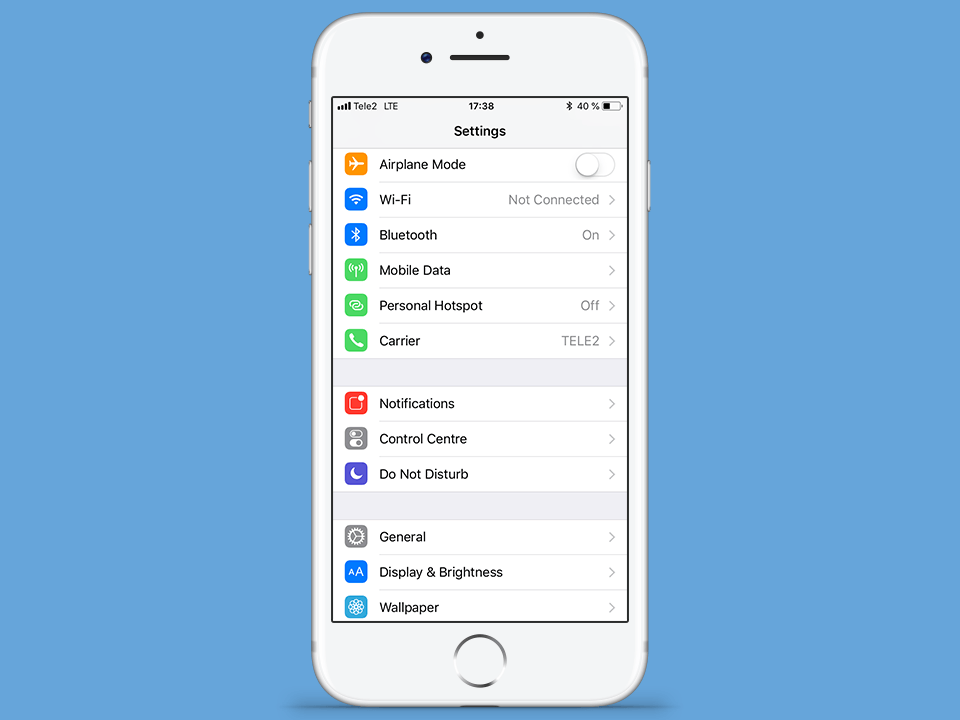
Go to your home screen and tap on Settings.
Next
Setting up L2TP VPN on iOS, step 1 Setting up L2TP VPN on iOS, step 1
2
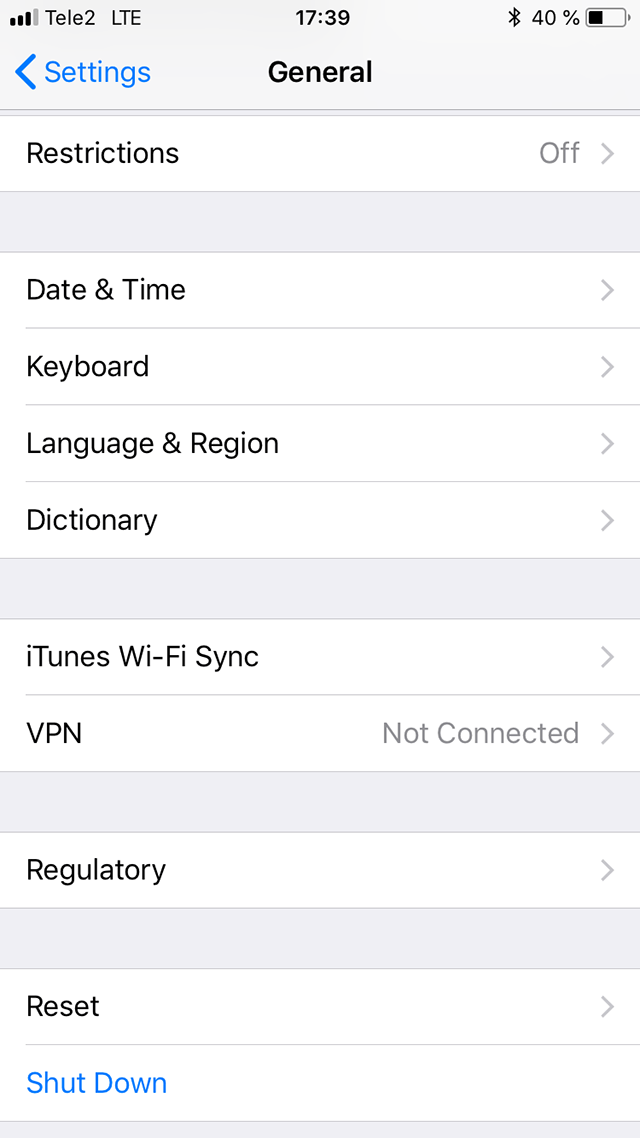
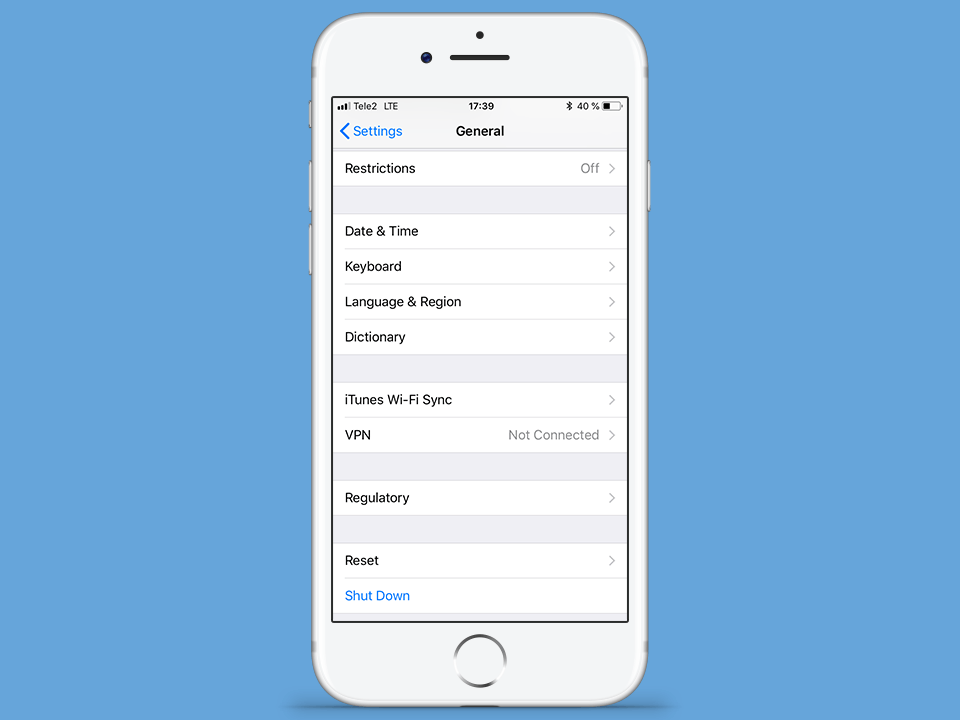
Tap on General.
Next
Setting up L2TP VPN on iOS, step 2 Setting up L2TP VPN on iOS, step 2
3
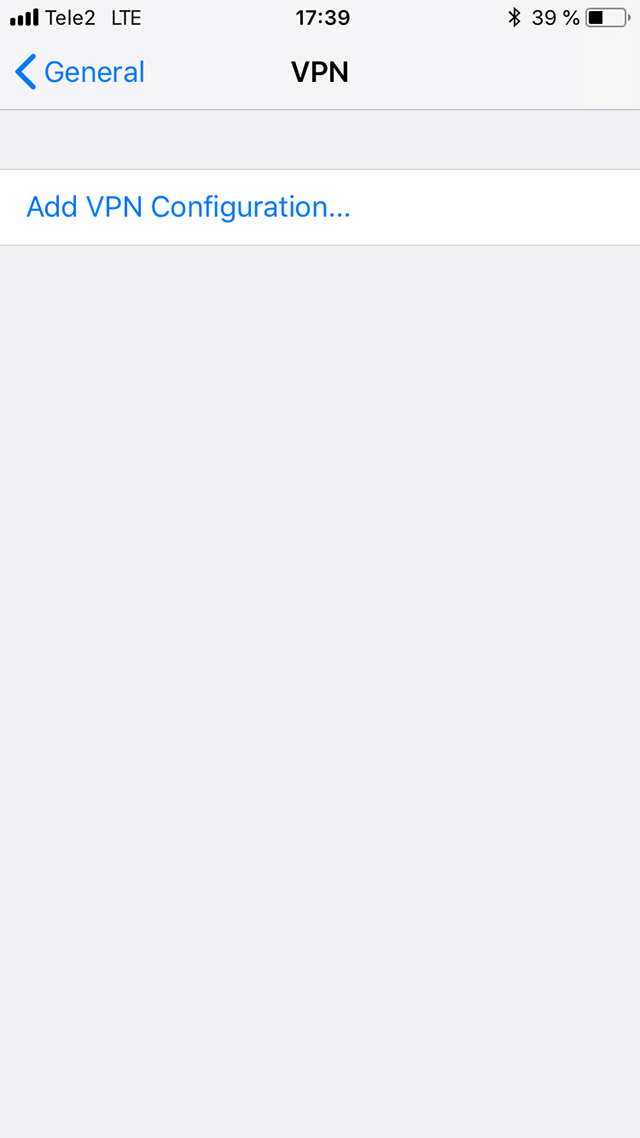
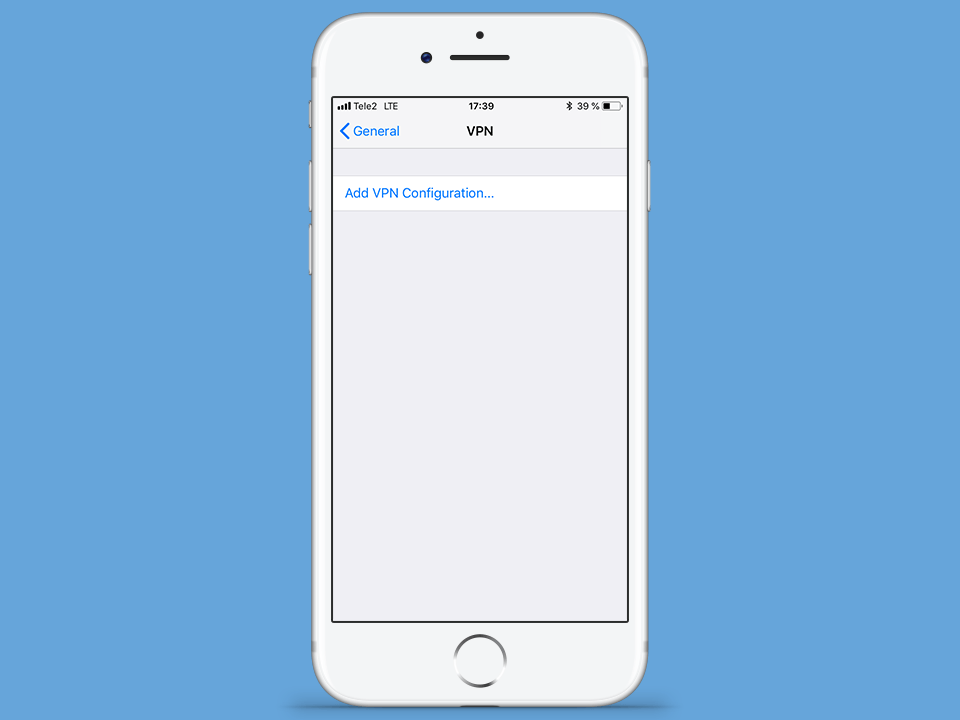
Tap on VPN.
Next
Setting up L2TP VPN on iOS, step 3 Setting up L2TP VPN on iOS, step 3
Setting up L2TP VPN on iOS, step 4 Setting up L2TP VPN on iOS, step 4
5
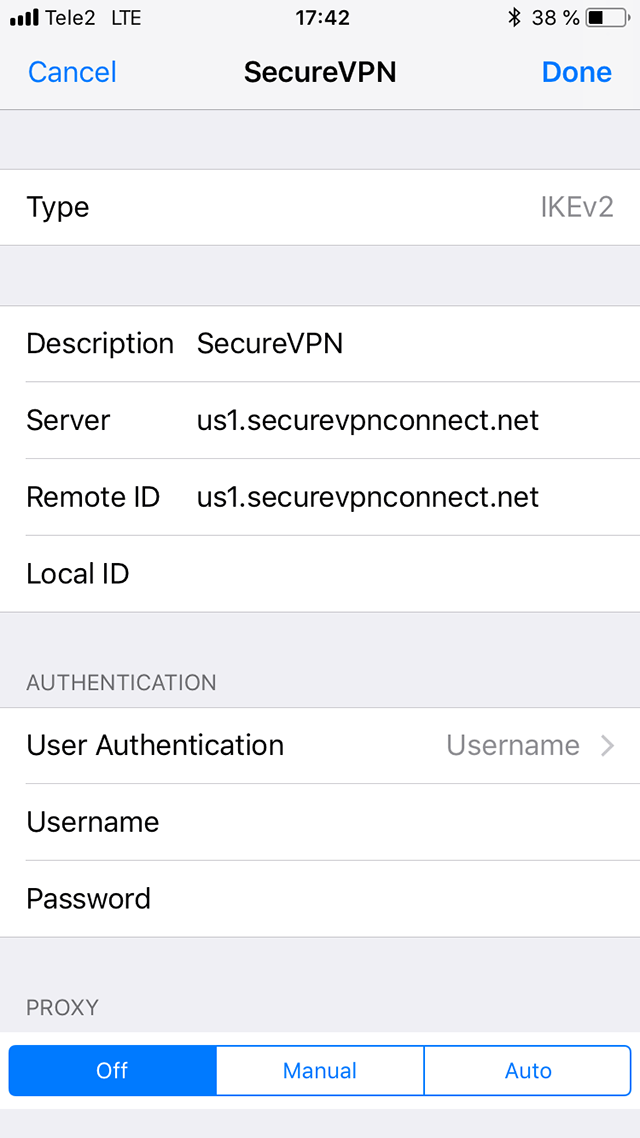
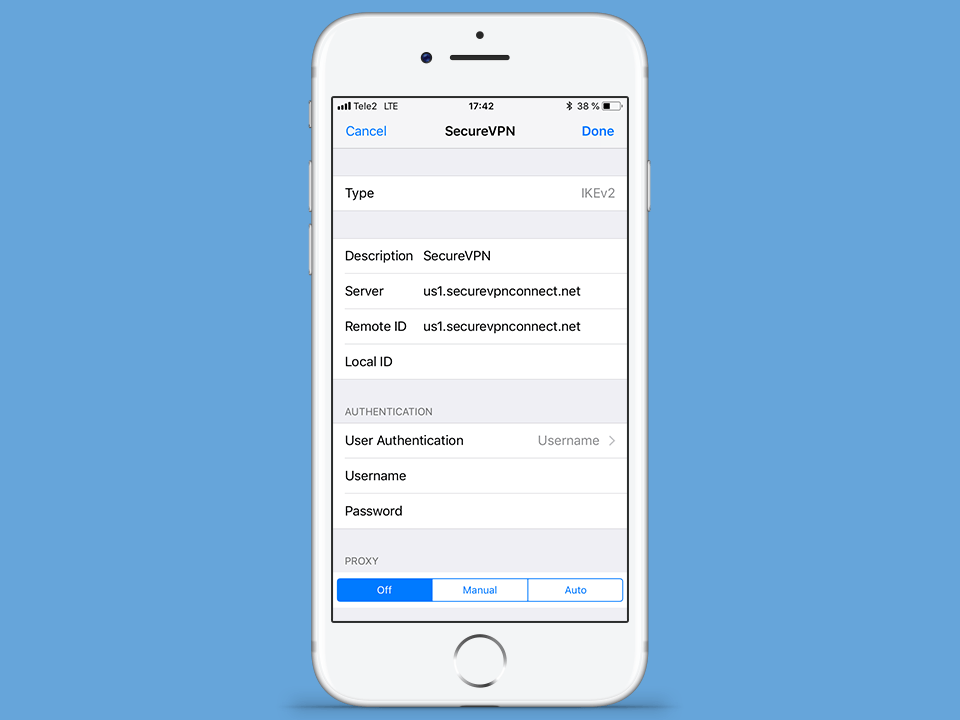
Set connection parameters: Next insert accounting data and press Done: Important Note: VPN servers list, your VPN username and password are in the file readme.txt (was sent to your email after ordering the subscription).
Next
username password Setting up L2TP VPN on iOS, step 5 Setting up L2TP VPN on iOS, step 5
6
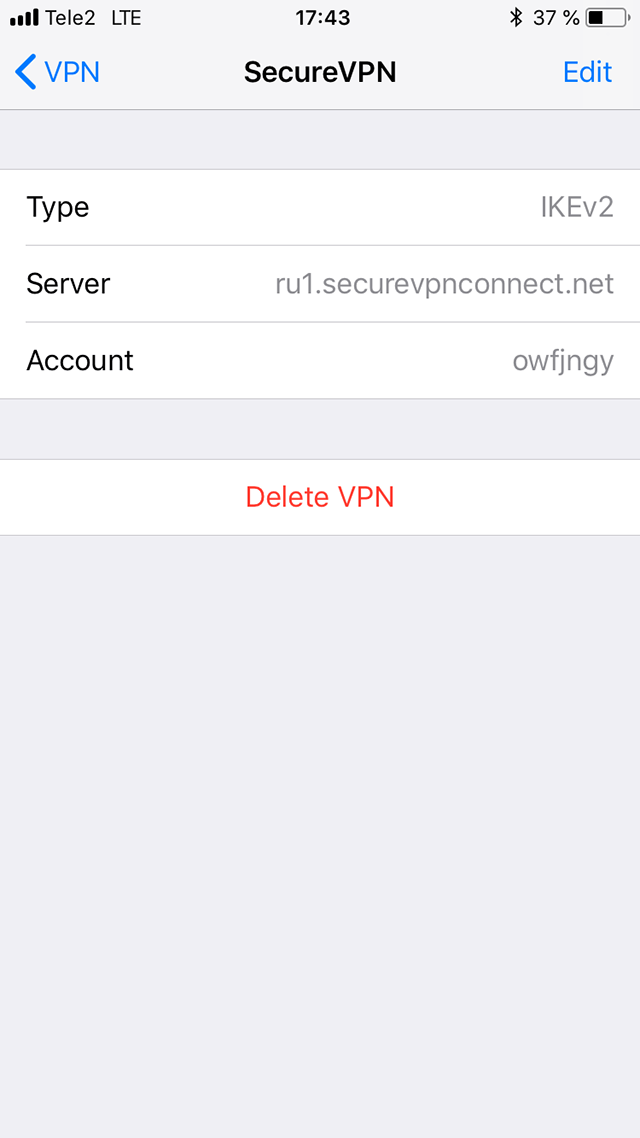
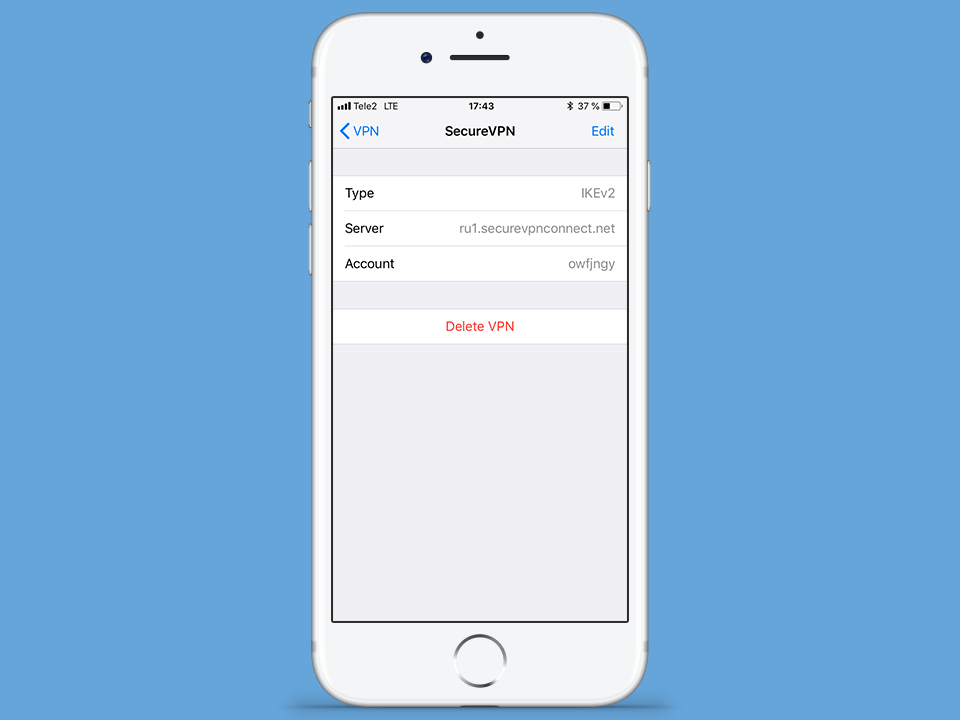
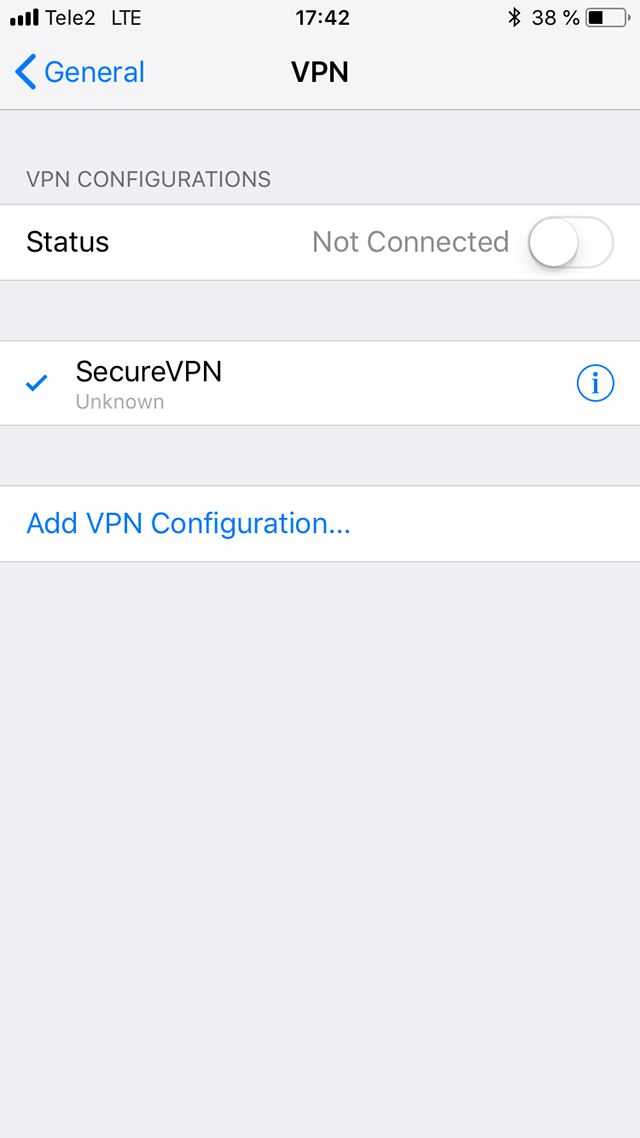
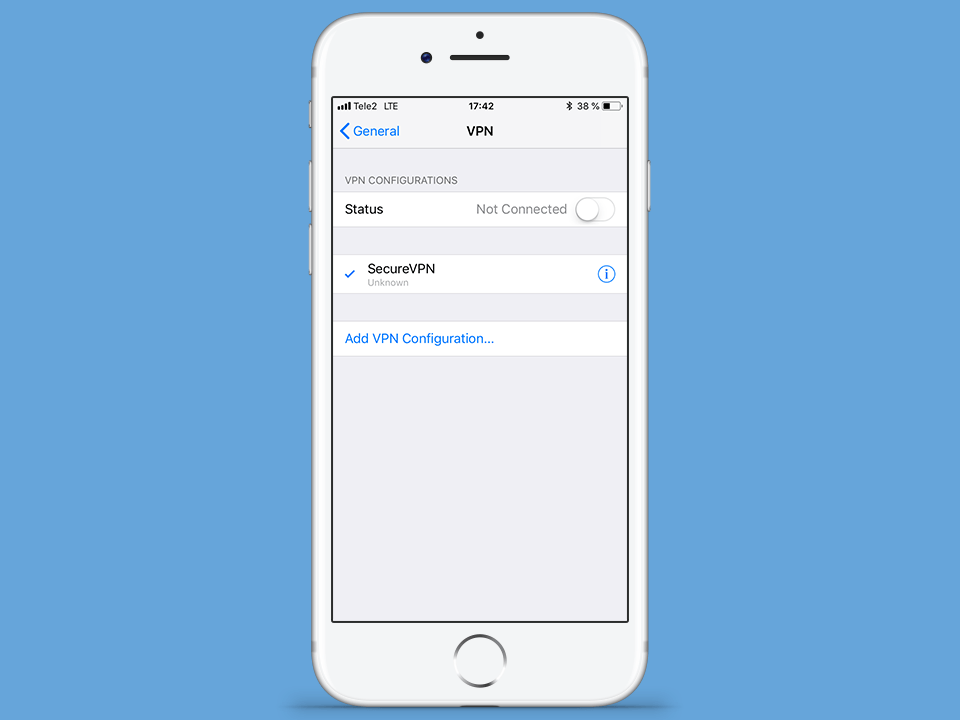
To connect turn on Status selector.
Next
Setting up L2TP VPN on iOS, step 6 Setting up L2TP VPN on iOS, step 6
7
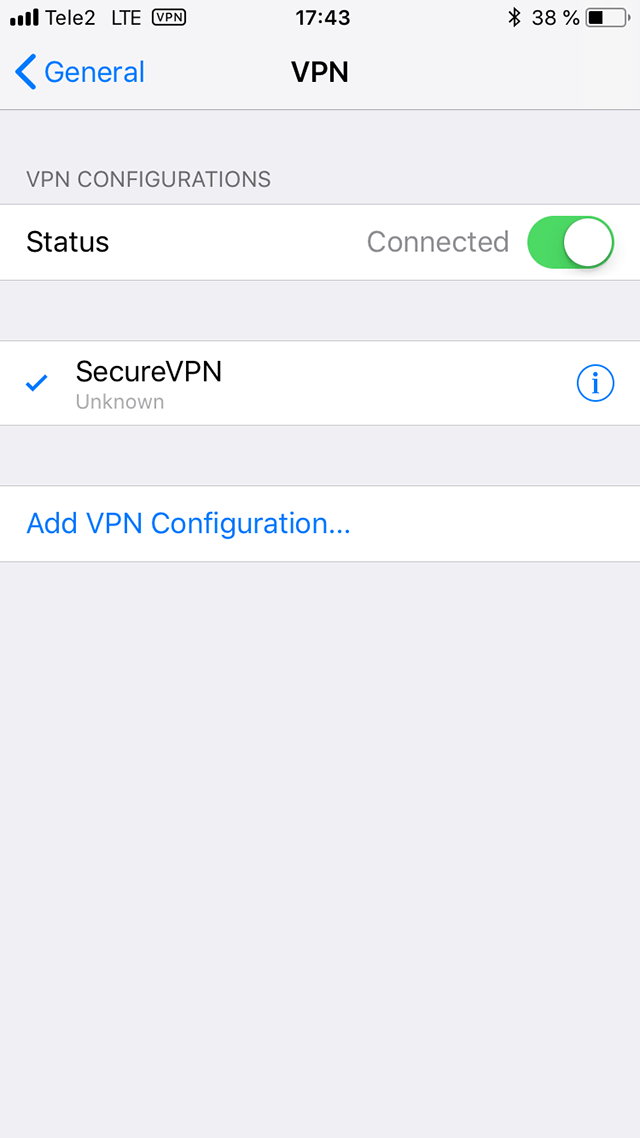
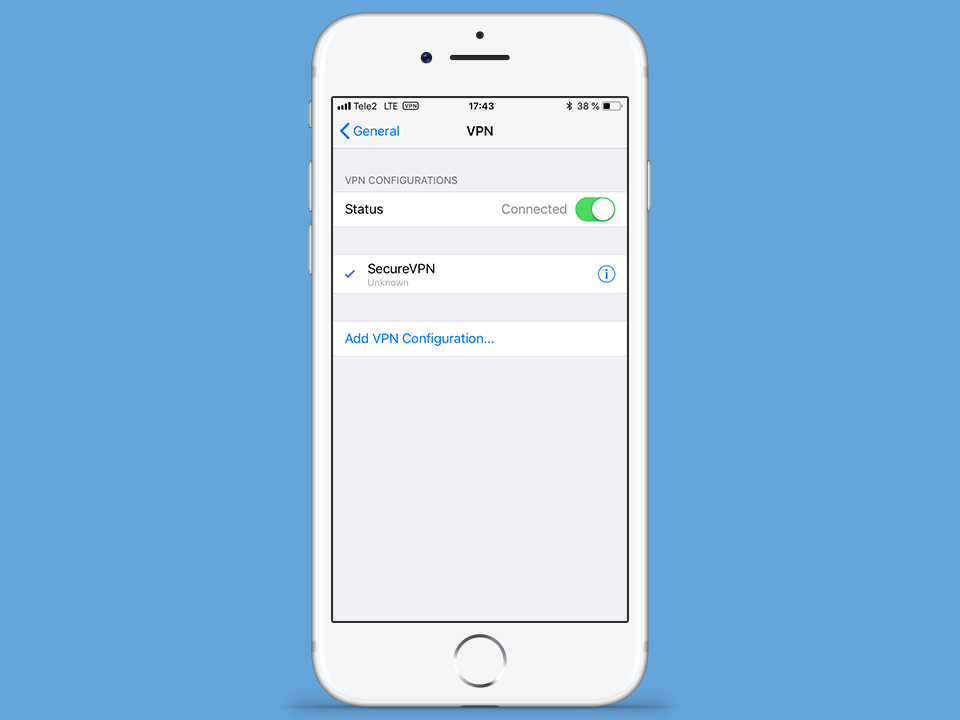
VPN connection will be established in few seconds. To disconnect turn off Status selector.
Next
Setting up L2TP VPN on iOS, step 7 Setting up L2TP VPN on iOS, step 7
8
To setup the outgoing IP open the http://setup.securevpnconnect.net when VPN-connection is active. Select the IP address you need and click the green check mark. The address is changed instantly, and the next time you connect to the VPN, the previously set address will be used.
To top
Setting up L2TP VPN on iOS, step 8 Setting up L2TP VPN on iOS, step 8

Registration


E-mail
Language
Password
Confirm Password

Support and Feedback