216.73.216.110 - United States, La Habra
ENG
РУС
中文
CHI
ENG
РУС
中文
价目表
问题与解答
建立
支持服务
博客
登录
注册
登录
注册
价目表
问题与解答
建立
支持服务
博客
登录到个人区域
忘记密码?
如何在iOS上设置L2TP
设置指南
iOS
在iPhone和iPad上设置L2TP
在iPhone智能手机或iPad平板上通过L2TP与IPSec设置VPN连接相当简单,因为iOS系统已集成了对该协议的支持。只需按照以下说明操作即可。如果您遇到任何问题,请联系我们的技术支持服务。
1
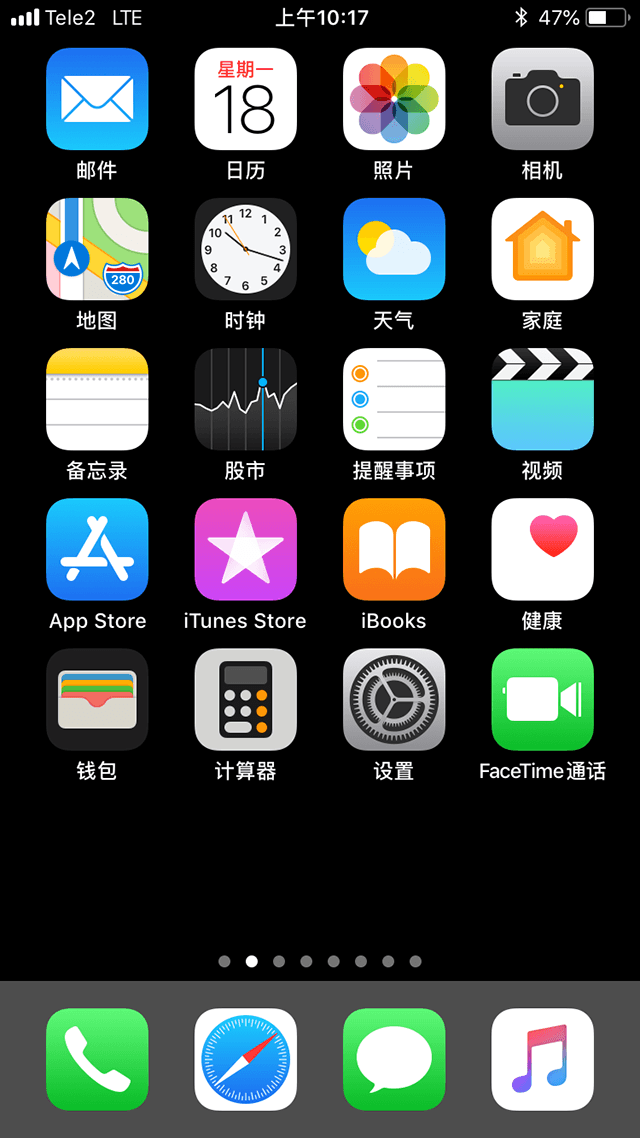
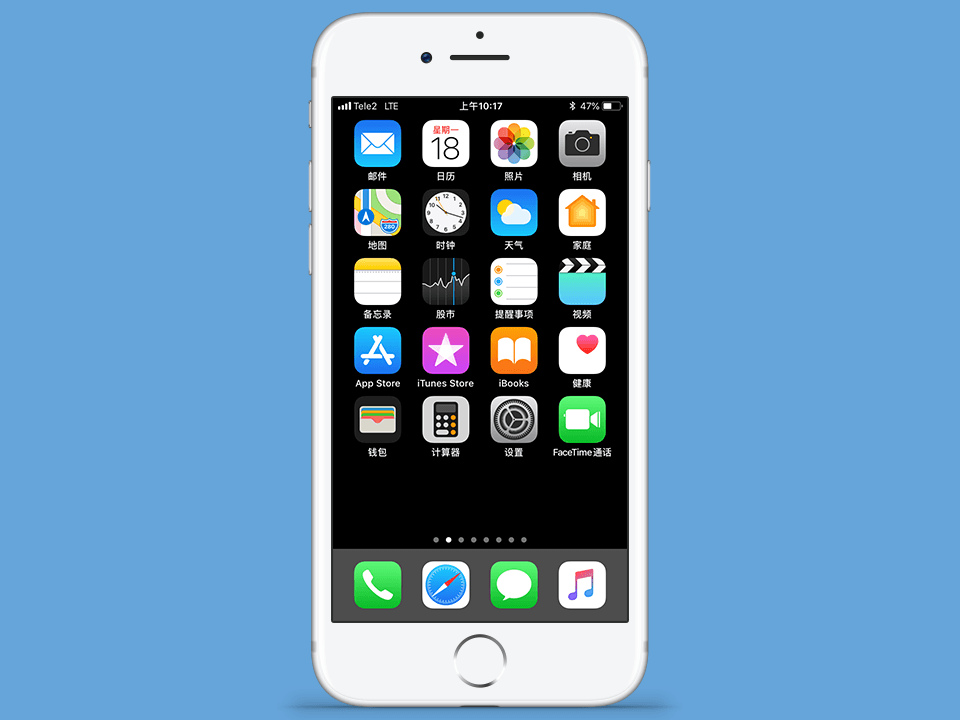
返回主屏幕,点击
设置
。
下一个
2
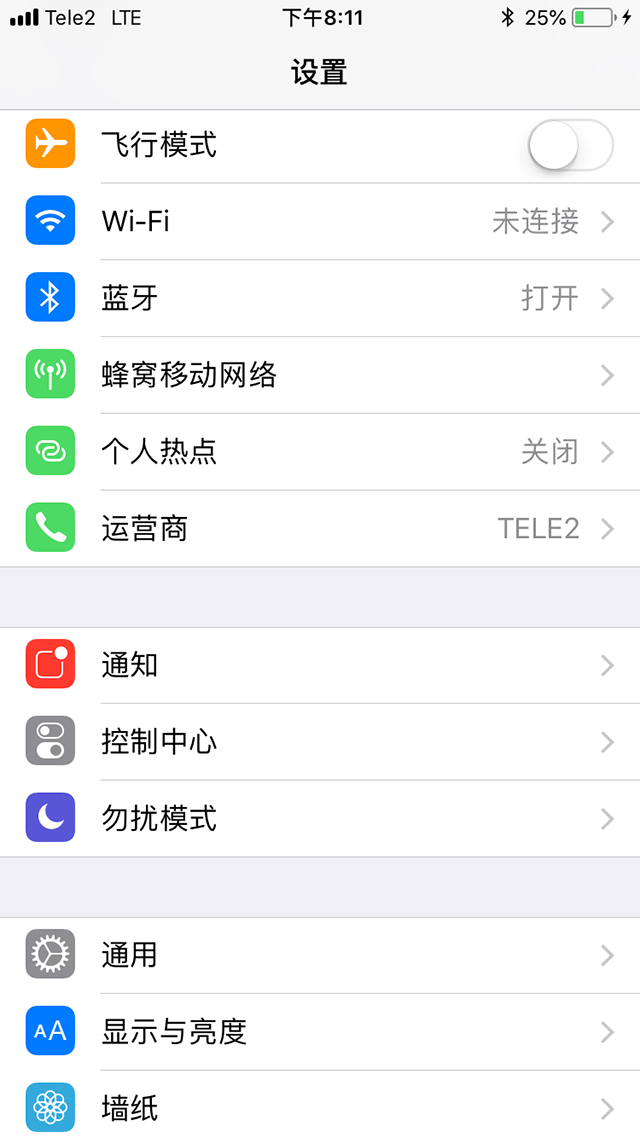
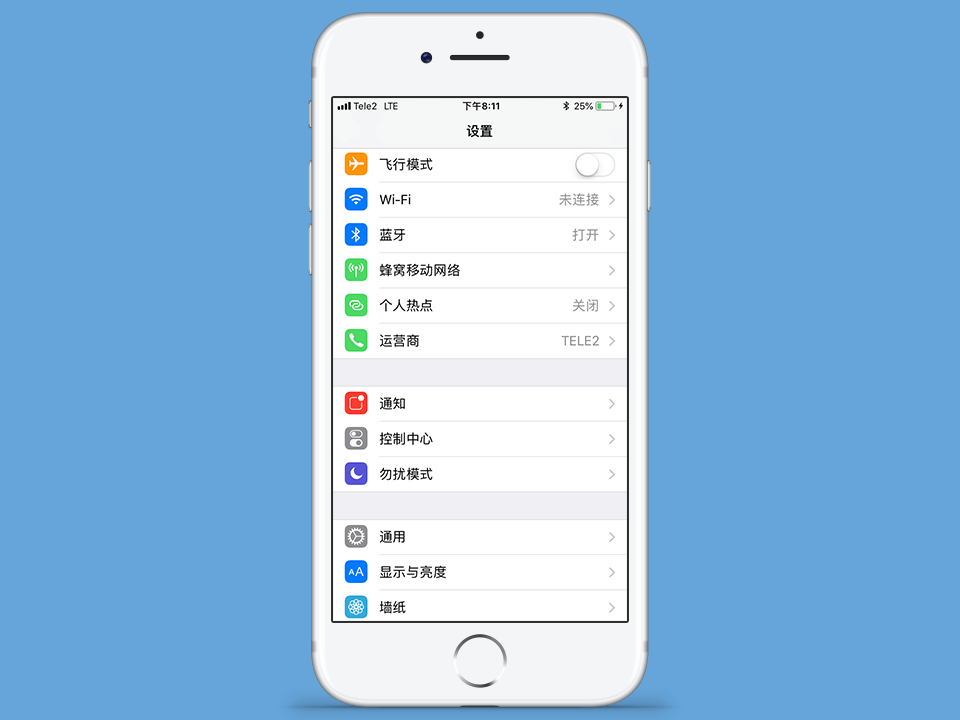
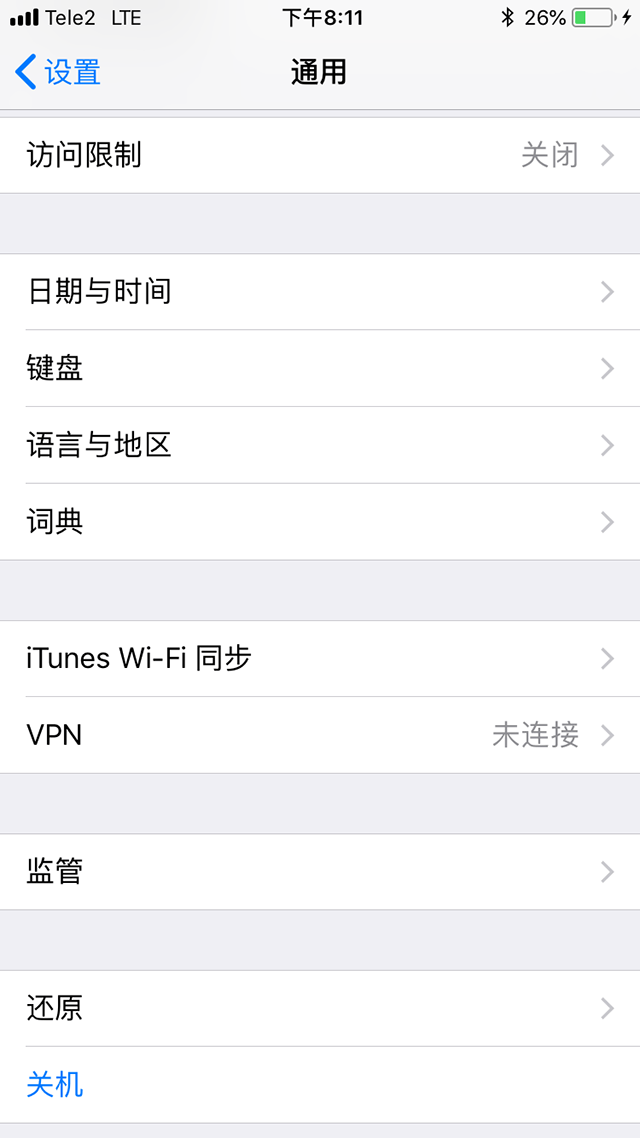
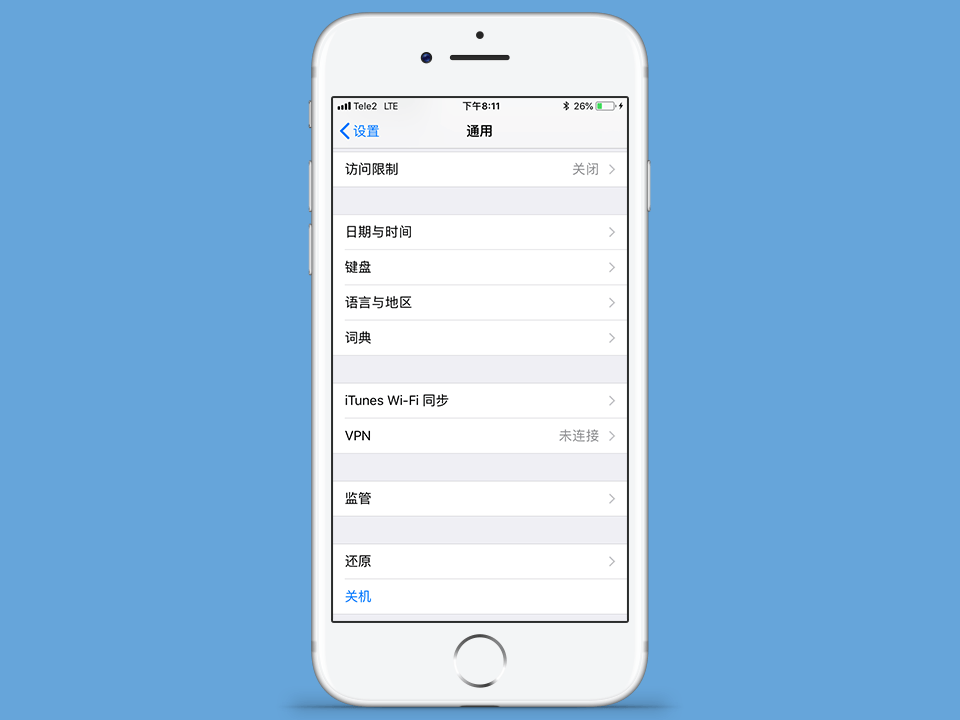
点击
通用
。
下一个
3
点击
VPN
。
下一个
4
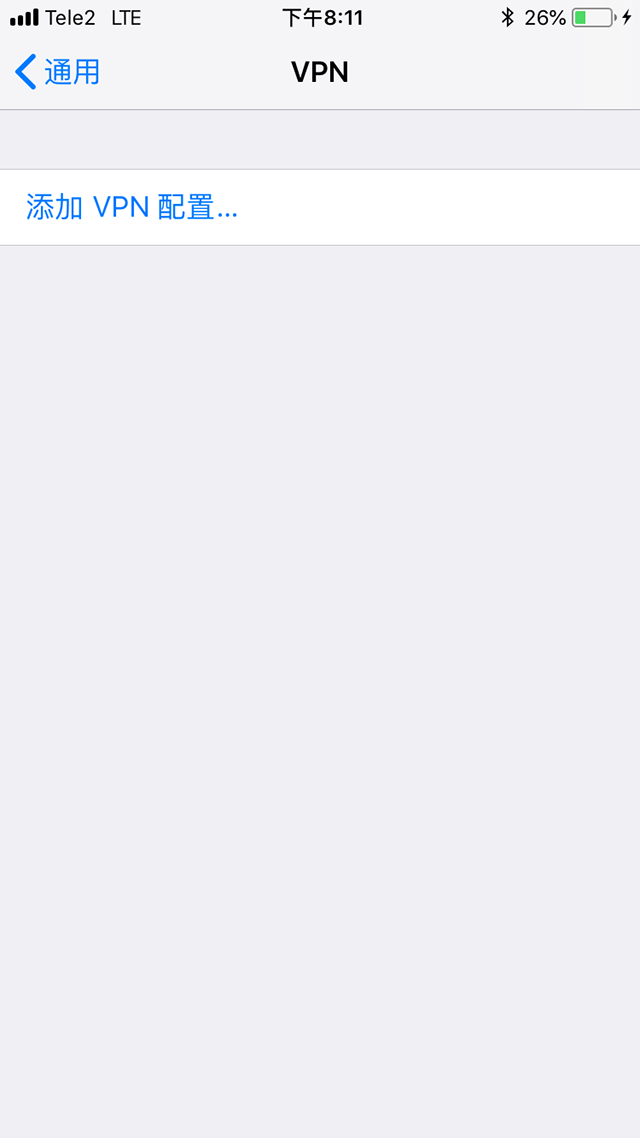
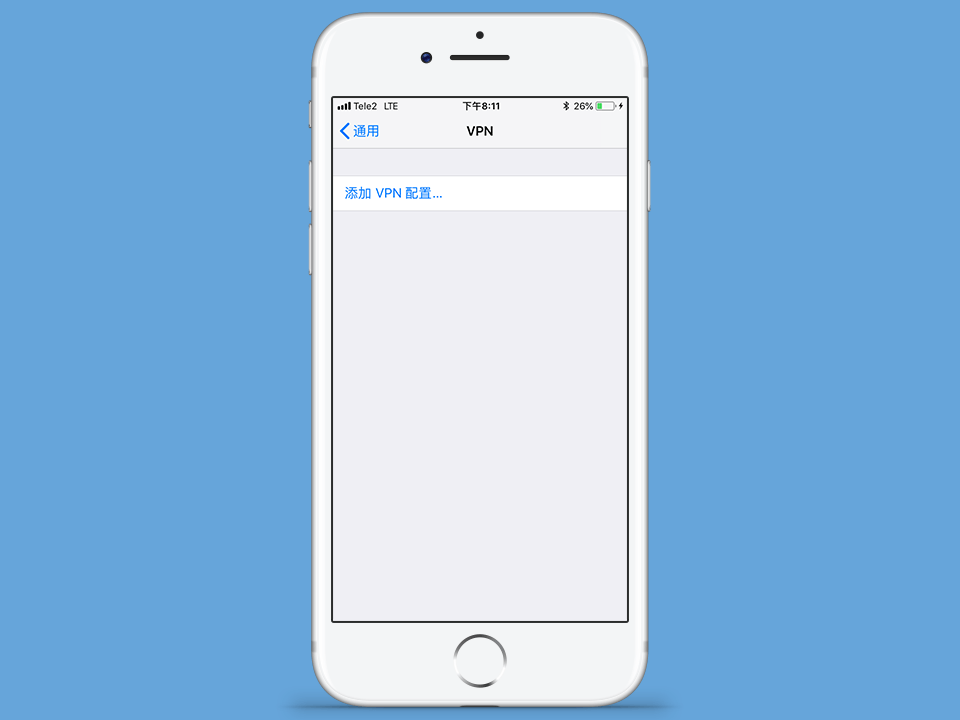
点击
添加VPN配置
。
下一个
5
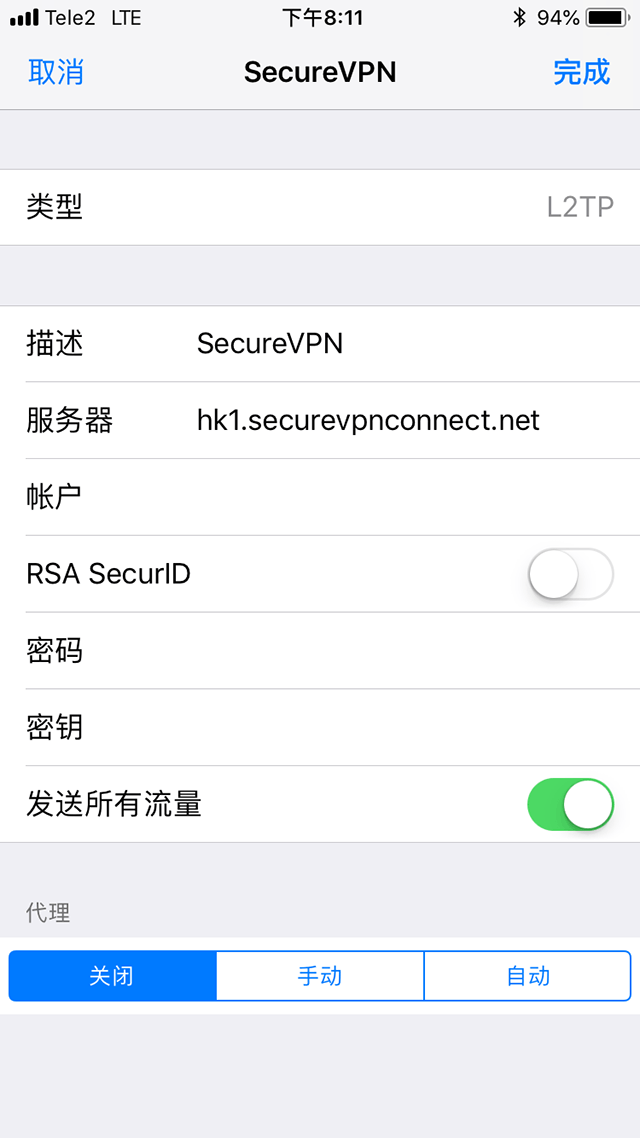
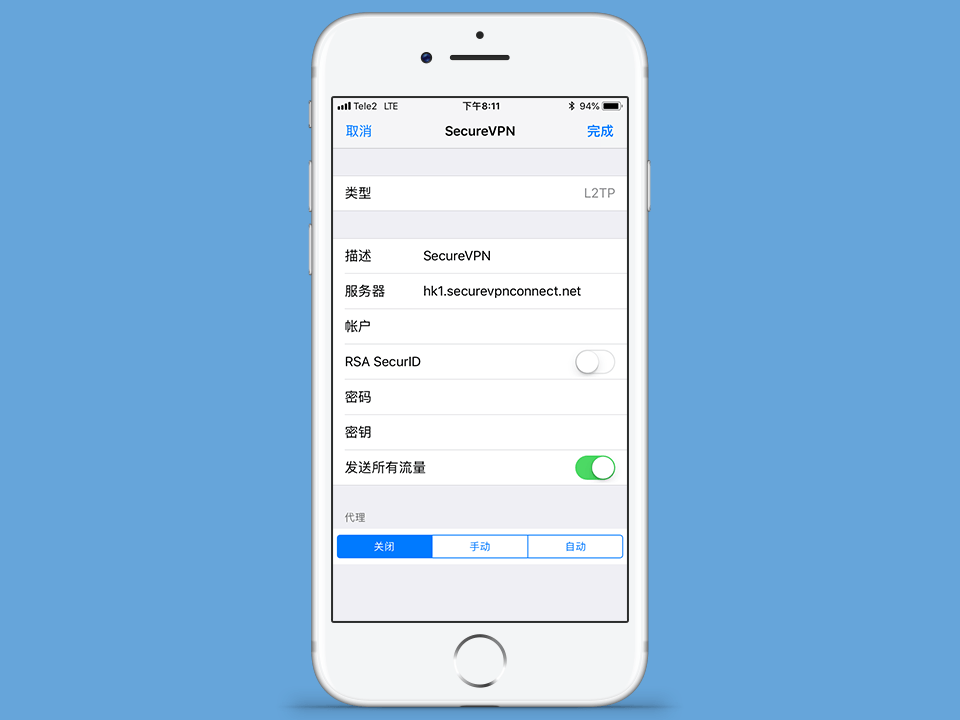
设置连接参数:
类型
-
L2TP
描述
- 为连接设置任意名称
服务器
- 要连接的VPN服务器地址
接下来输入账户信息并点击
完成
:
用户名
-
username
密码
-
password
秘密
-
a-secure-psk
开启
发送所有流量
并点击
完成
。
重要提示:
VPN服务器列表、您的VPN用户名和密码均在文件 readme.txt 中(此文件在您订购订阅后已发送至您的电子邮箱)。
下一个
username
password
a-secure-psk
6
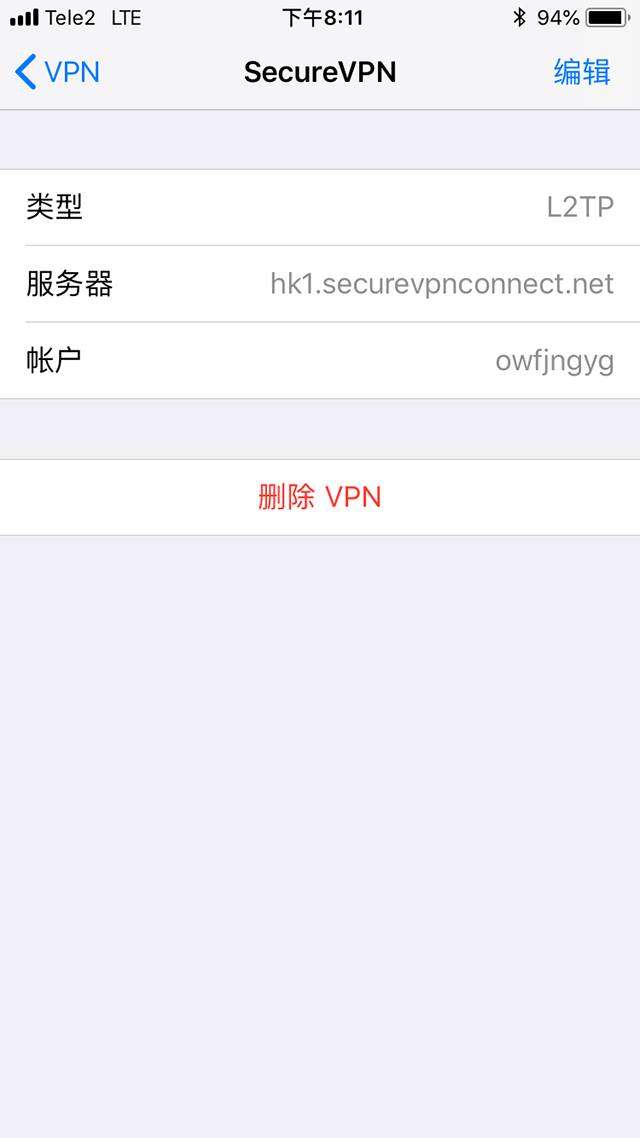
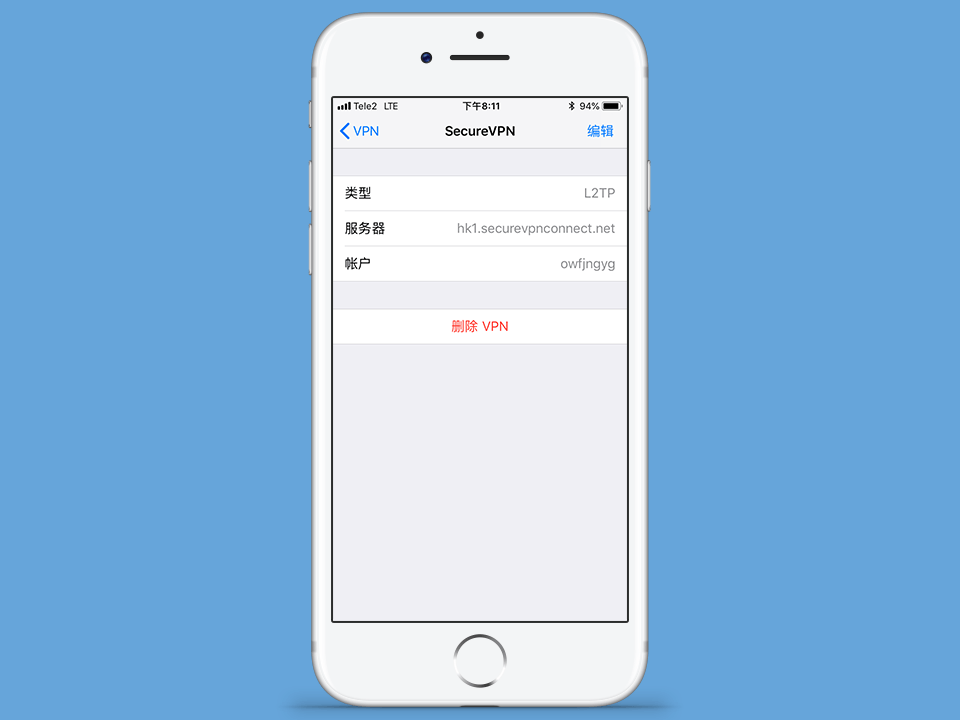
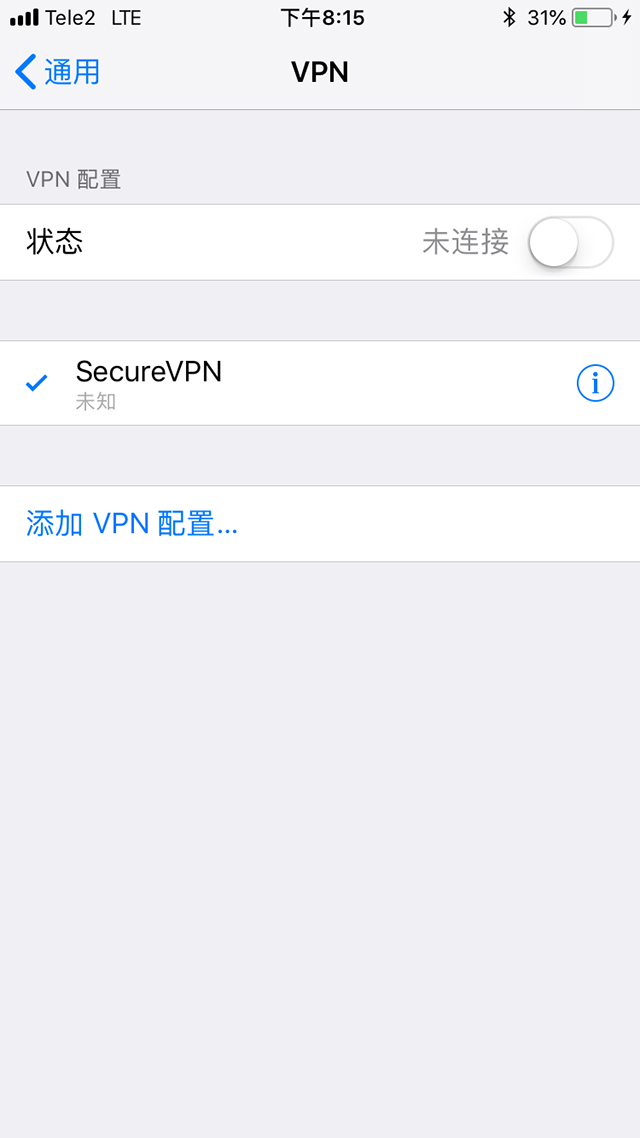
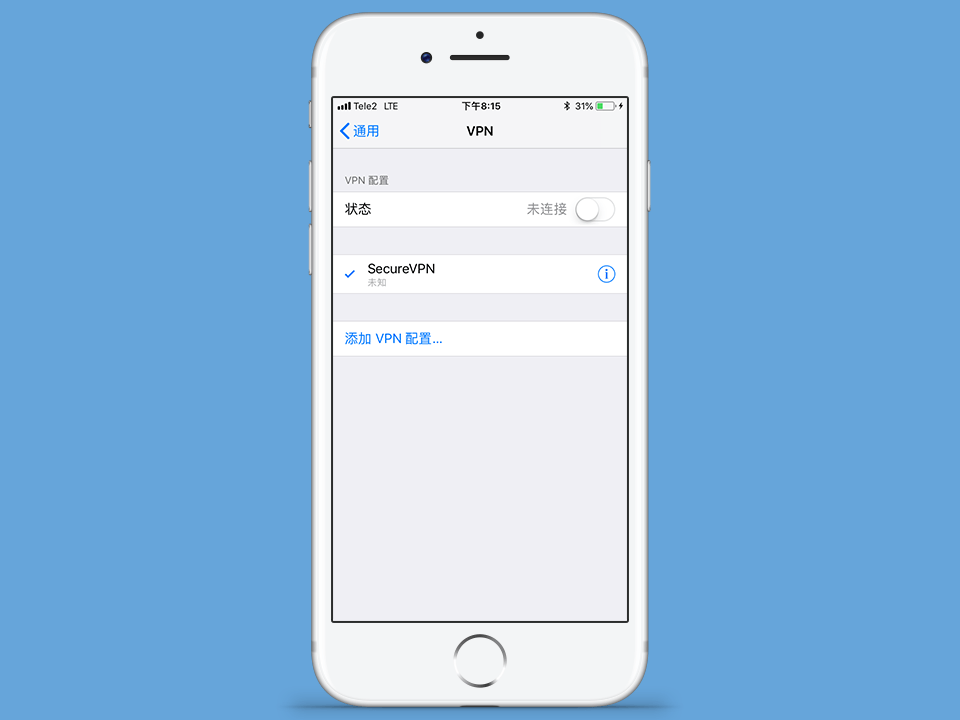
若要连接,请开启
状态
开关。
下一个
7
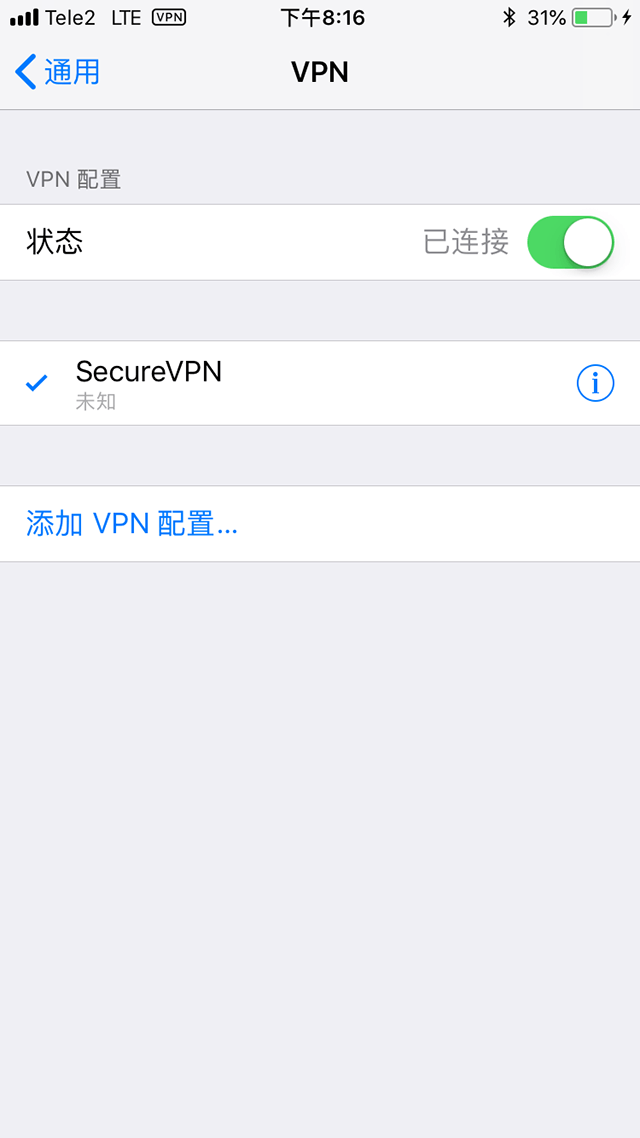
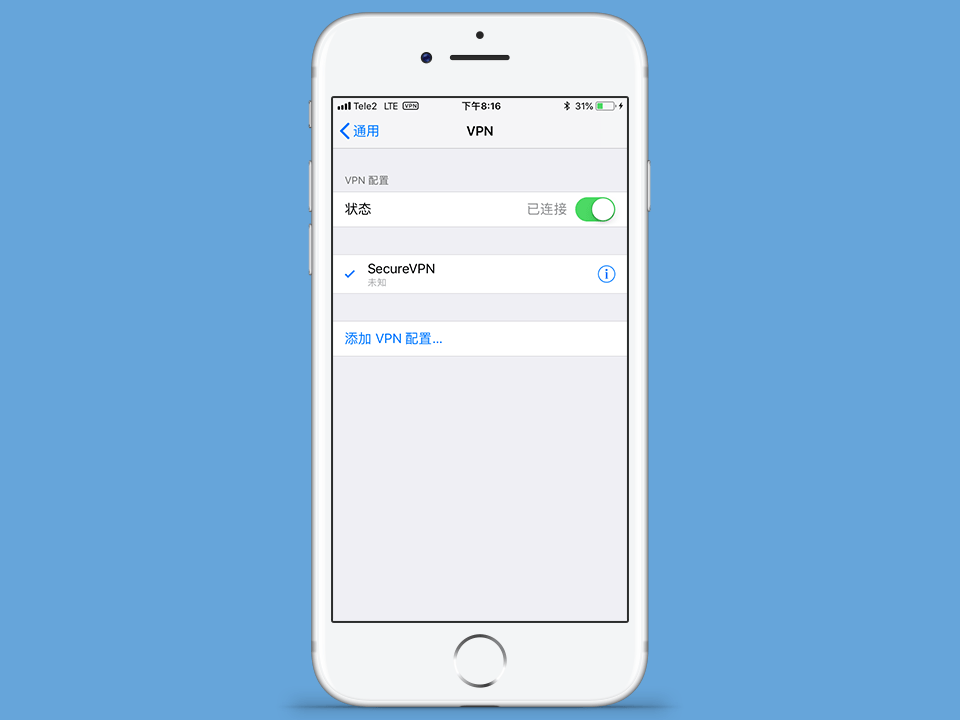
VPN连接将在几秒钟内建立。若要断开连接,请关闭
状态
开关。
下一个
8
要设置传出IP,
请在VPN连接处于活动状态时打开
http://setup.securevpnconnect.net
。选择您需要的IP地址并点击绿色勾选标记。地址会立即更改,并且下次连接VPN时,将使用先前设置的地址。
到顶
注册
E-mail
语言
Русский
English
中文
密码
确认密码
同意
服务条款
和退款政策
注册
×
支持和反馈
发信息
×